Gymdesk integrates with hundreds of smart locks and access control devices, allowing you to manage facility access based on membership status. This keeps your space secure, reduces manual check-ins, and supports 24/7 access where needed.
Which Door Access Solution is Right for Your Gym?
Compare the available door access options below to see which is best for your gym type, size, and operating model. Consider whether you need simple member app access for a single location, or more advanced, multi-door control with detailed permissions across different areas of your facility.
Click the comparison chart to view the full guide with clickable links.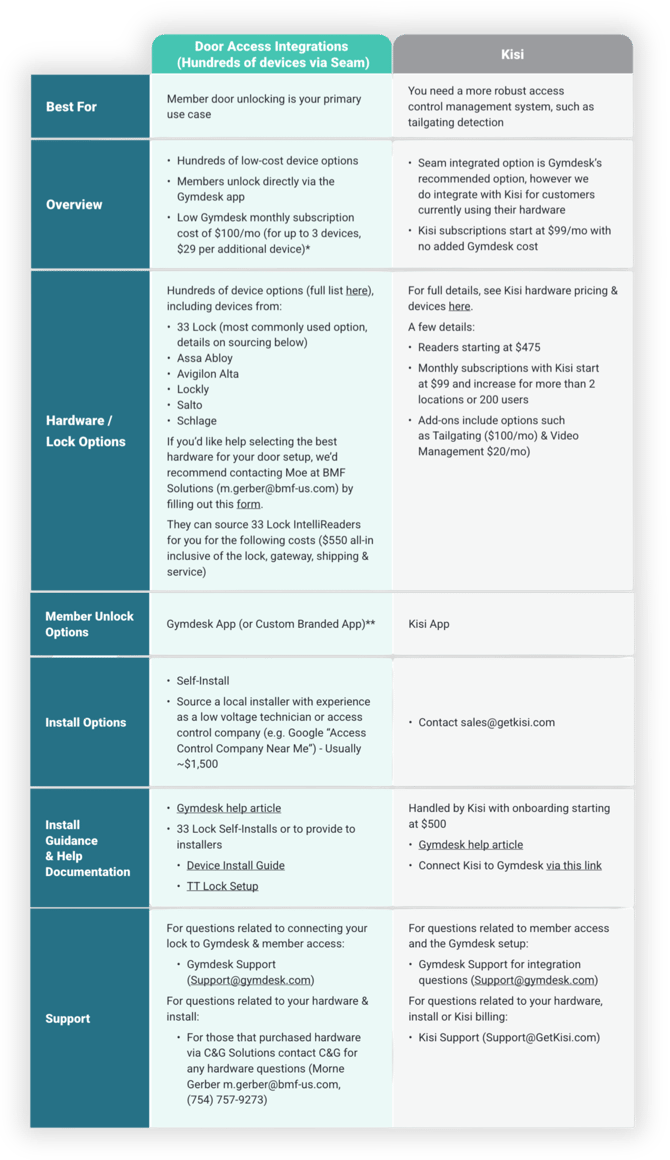
-
Seam (Recommended): Best for simple member access using the Gymdesk app
-
Kisi: Best for more advanced access control systems
IMPORTANT: If you are using Kisi, members MUST USE the Kisi app to unlock the door. Unlocking directly from the Gymdesk member app is only available for devices supported through Seam integrations.
Devices
To get started, purchase one of our supported devices*. Once you obtain a device, register it online with the brand you purchased from. Many of the supported devices can be setup by downloading the TTLock app. More details can be found on that here. You'll also want to make sure Remote Unlock is enabled on the TTLock app, in order to allow members to unlock via the Gymdesk app.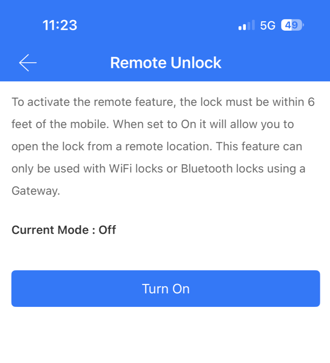
To connect the device to Gymdesk, go to Settings -> Integrations -> Door Access to add it to your account (Note: only the account owner can connect devices).
Generally we would recommend devices with built-in Wifi where possible, as this reduces the need for an additional hub/bridge hardware purchase. If you do go with an option that requires a hub, the recommended solution is Smartthings. Some manufacturers also sell their own bridge device, which is also supported.
If you would like help selecting the right lock or door access solution for you, please fill out this form and our team will review and provide a recommendation.
Pricing
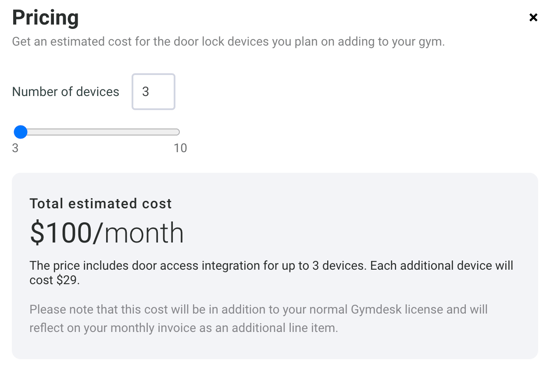
There are several affordable device options as you'll find in the section above. Once you purchase your devices, the cost to integrate with Gymdesk is $100 per month for up to 3 devices. Each additional device past the first 3 will cost $29.
*Please note that some hardware providers charge their own subscription fees (for example Salto KS & Lockly). We recommend confirming their costs before installing. Gymdesk will soon have a repository of devices & their respective costs.
Managing Devices
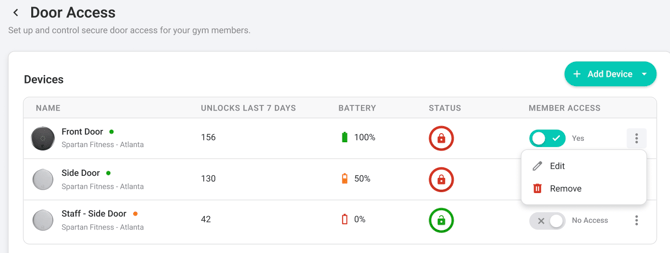
Within Settings -> Integrations -> Door access, you can manage the devices that you've connected to your account.
- Member Access - You can set which devices you want members to have access to unlock
- Attendance Tracking - Turn on this setting if you'd like for members to automatically be checked in when they unlock a door using the Gymdesk portal or app. This will check them into the first available session
- Unlock - You can lock or unlock doors remotely via the Door Access management screen
Business Hours
Also within Settings -> Integrations -> Door access you can establish business hours if you'd like to have defined hours where the door can be unlocked.
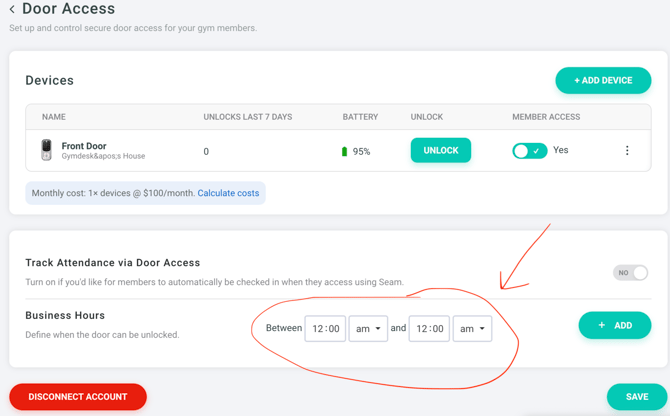
Within the membership access (see more below), you can select the option for business hours should you want this membership's access to adhere to the established business hours.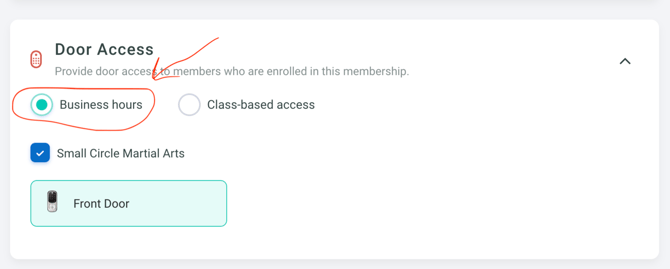
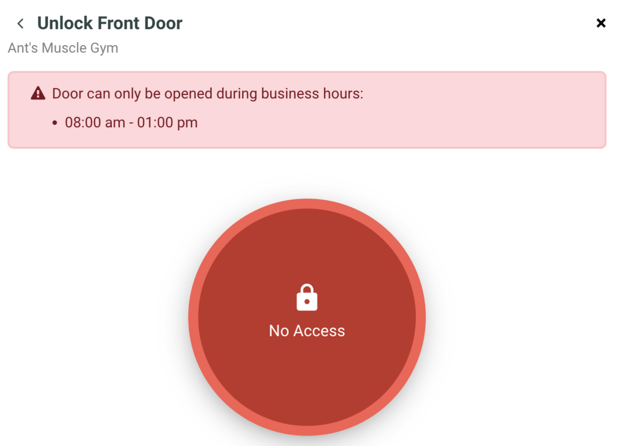
Members who attempt to access the door outside of business hours will receive the following notification.
Membership Access
By navigating to Members -> Memberships, you can edit the specific doors that each membership will permit access to within the "Door Access" section of the membership page.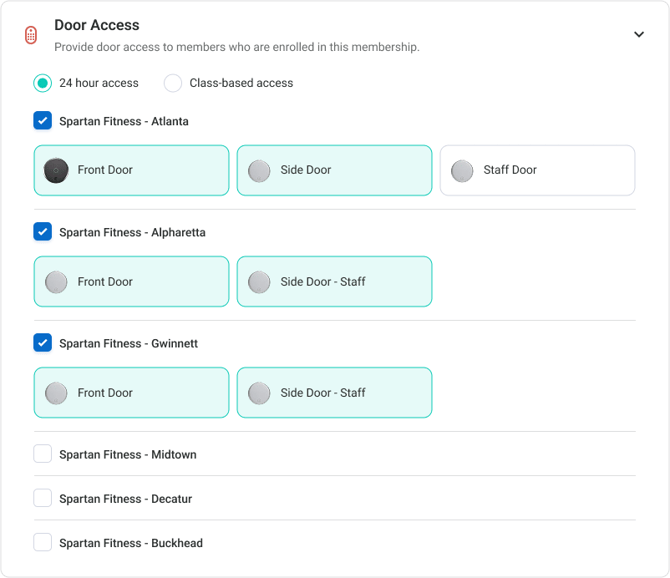
Member Access
Members will be able to unlock doors directly from the Gymdesk portal or member app (both the Gymdesk branded or custom branded versions).
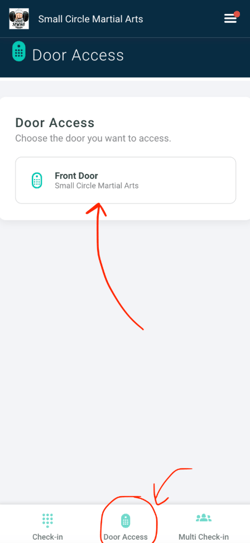
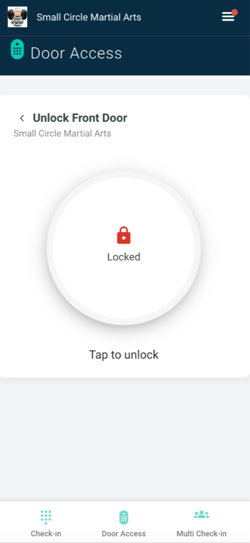
From the mobile responsive web version of the mobile portal, they'll be able to select "Door Access" and select the door to unlock by tapping and holding the unlock button.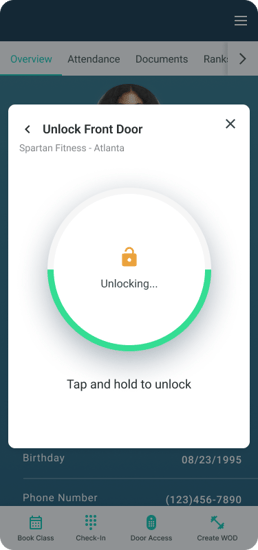
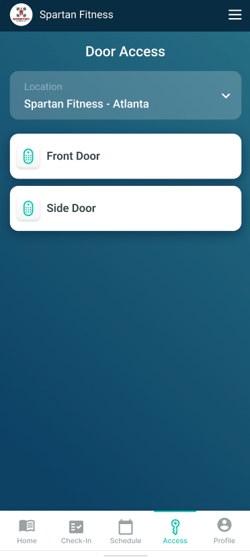
On the mobile app, members will be able to unlock doors under the "Access" section. They will tap and hold to unlock after selecting their desired door.
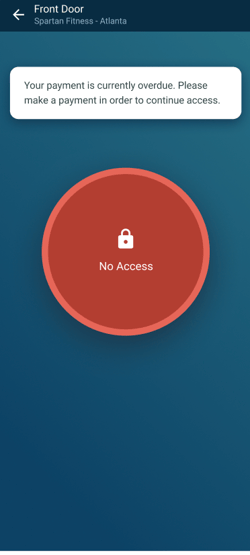
If a membership does not have access to a specific door or they are blocked due to an overdue payment, then the door access will be restricted.
Staff Access
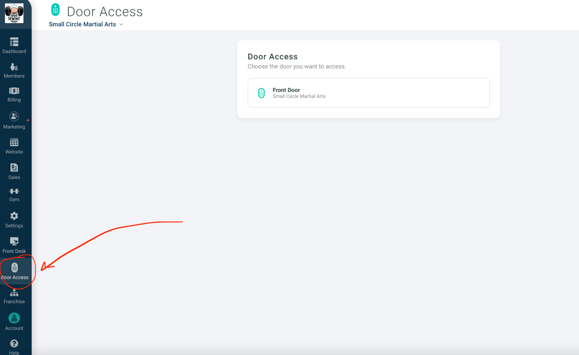
Staff will have a "Door Access" option within their account. Below are screenshots of what this will look like from both a mobile and tablet / desktop view. By selecting the "Door Access" option and the relevant lock, staff will be able to unlock the door.