
Continue to → Privacy Policy & Business Contact Details
Go to → Branding and Design
What is the Branded Member App?
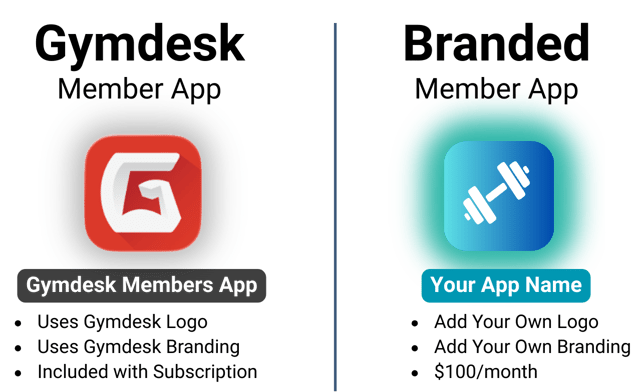
Gymdesk’s Branded Member App is an optional add-on that lets you publish a fully branded member app on the Apple App Store and Google Play, listed under your own business name.
As you work through the steps below, enter the required details in your Gymdesk account by going to Settings → Branded Member App Setup. At the end, you’ll find a final checklist to confirm everything is complete before you submit. Checking the boxes won’t complete the steps for you — but helps you visually confirm they're completed.
-
$100/month — billed only once your app is live
-
Estimated time to launch: 2–4 weeks (estimated)
(includes account verification and app store review time) -
Setup time: ~30–60 minutes to complete required information
To get started, have the following ready:
1. The D-U-N-S® Number for Your Business
-
D-U-N-S Number Look-Up Tool
If your business doesn’t appear in the look-up tool, you’ll be prompted to submit your details to request one. (New D-U-N-S numbers can take up to 5 business days).
2. A Published Business Website using a DOMAIN YOU OWN
-
(Example: www.YOURDOMAIN.com)
3. A work email address that uses your business website’s domain
We recommend using one dedicated business email address to register both your Apple and Google developer accounts.
-
(Examples: dev@YOURDOMAIN.com or admin@YOURDOMAIN.com)
Developer Account Setup & Enrollment
Apple and Google require verified developer accounts to publish an app under your business name, so your company — not Gymdesk — appears as the publisher. Once approved, you’ll grant Gymdesk access (instructions below) so we can build, submit, and maintain your branded app in both app stores on your behalf.
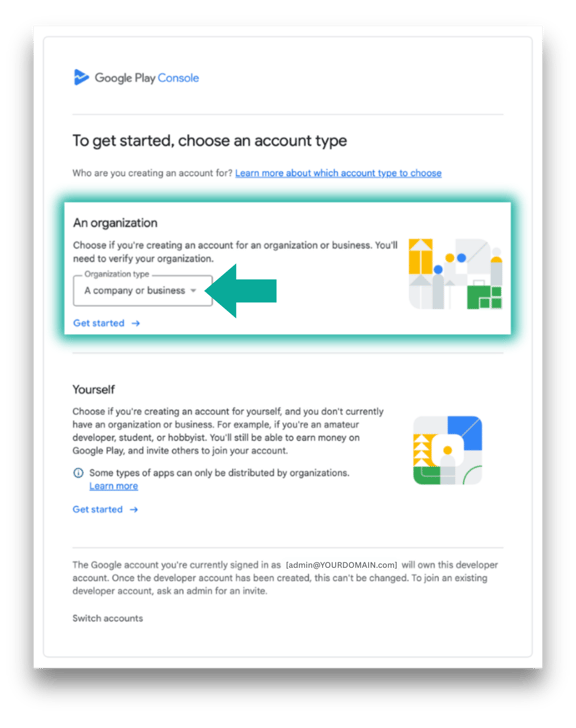
IMPORTANT : You must select Organization/Company when choosing your entity type. Individual accounts cannot be used for Branded Member App publishing.
Setup Your Apple Developer Account :
Register as an Apple Developer ↗
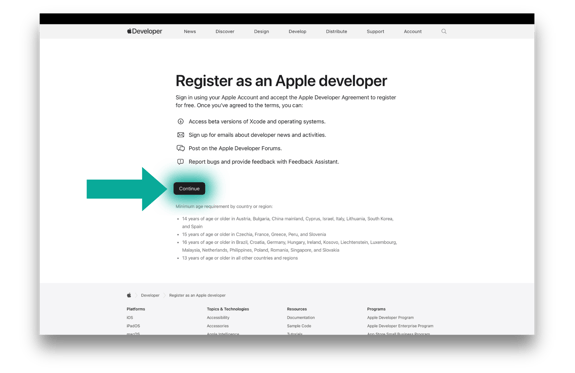
1. First, you must register as an Apple developer. This creates your developer profile using an Apple ID (best to use one dedicated to your business). This does NOT allow you to publish apps.
Enroll in the Apple Developer Program ↗
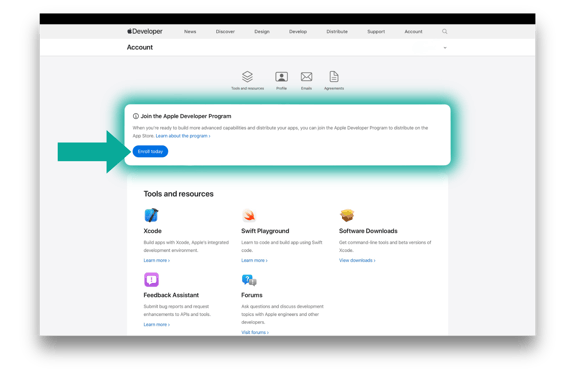
2. Next, you must enroll in the Apple Developer Program ($99/year). This step is REQUIRED before you can publish apps to the App Store. Once enrollment is complete, your account will enter Apple’s verification process, which typically takes 1–3 business days.
If you accidentally choose Individual/Sole Proprietor as your entity type while enrolling in the Apple Developer Program, you can correct this in Account → Membership Details → Update Information → Change to Organization.
Setup Your Google Developer Account :
Register for a Play Console Developer Account ↗
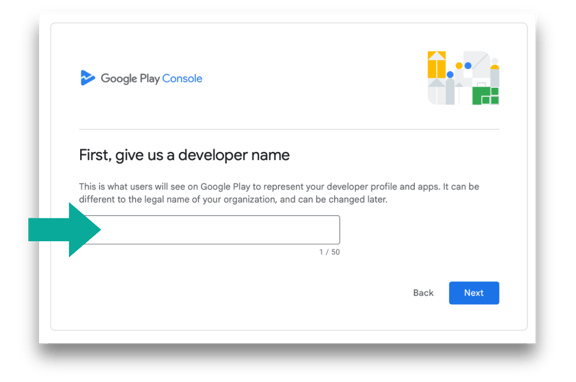
1. Unlike the cost for Apple's Developer Program, setting up a Play Console Developer Account only requires a one-time $25 Registration Fee. After you complete your registration, your Play Console Account will go through Google’s verification process, just like with Apple.
While Google lets you set and later update your “Developer name,” we strongly recommend using your legal business name so it matches your Apple Developer account (which is generated from the business name tied to your D‑U‑N‑S number) and your Gymdesk account.
Gymdesk Access to Your Developer Accounts (Required)
To build, submit, and maintain your Branded Member App, Gymdesk must be granted the required access permissions within your Apple and Google developer accounts.
If these permissions are not enabled correctly, your app build and submission will be delayed. Please follow the steps below to ensure proper access is granted :
Instructions for Apple Developer Account
-
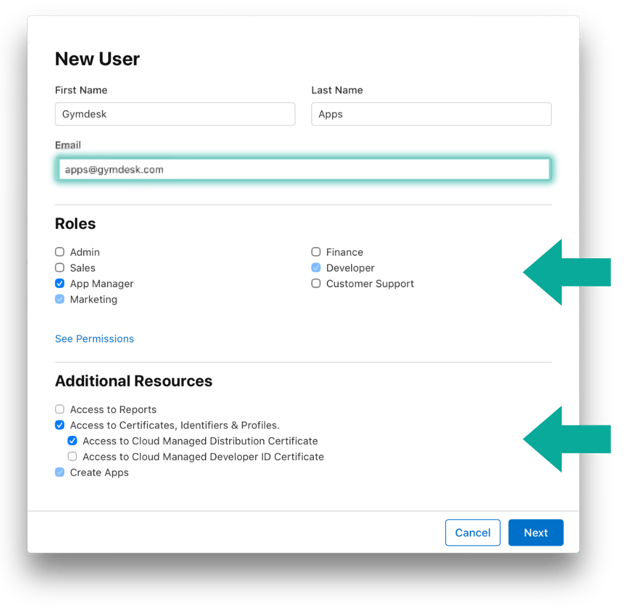
From the dashboard, under App Store Connect, select Users and Access.
-
Click the “+” button to add a new user
-
Enter: apps@gymdesk.com
-
Under Roles, check the box for App Manager.
- Under Additional Resources, check the boxes for:
-
- Access to Certificates, Identifiers & Profiles
- Access to Cloud Managed Distribution Certificate
- Create Apps
-
- Once finished, click INVITE.
 Instructions for Google Developer Account (Play Console)
-
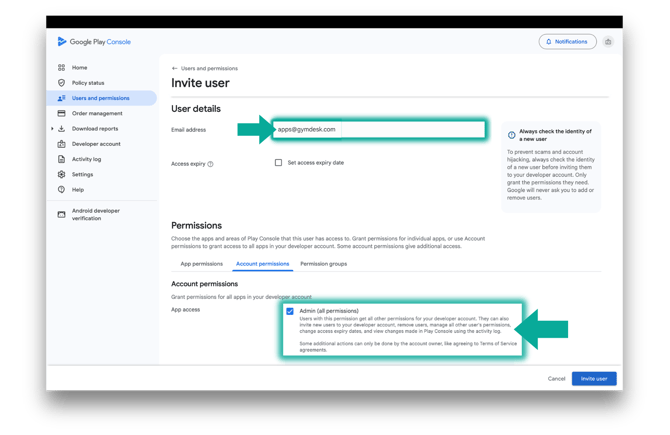
After you login, go to Users and permissions in the left-hand menu.
-
Click Invite new users.
-
Enter: apps@gymdesk.com
-
Under Account Permissions, select Admin (All Permissions).
- Then, click INVITE.
Provide Your App Store Account Details to Gymdesk
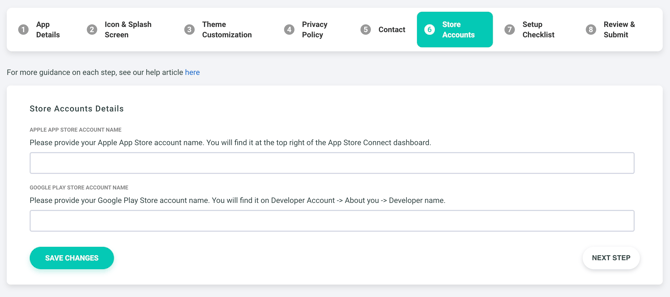
Once your developer accounts are fully set up, enter your app store account details in Gymdesk by going to Settings → Branded Member App Setup → Store Accounts. Please enter the exact account names shown in your Apple and Google developer dashboards. Ideally, these should be identical and match the business name on your Gymdesk account to avoid confusion or delays during the build process.
Continue to → Privacy Policy & Business Contact Details
Go to → Branding and Design