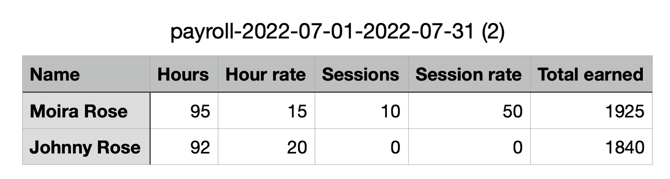
Gymdesk includes payroll tracking tools that help you calculate estimated gross pay for staff based on their logged hours and assigned hourly rates. You can then export this information as a CSV file to use in spreadsheets, accounting systems, or external payroll software.
IMPORTANT: Gymdesk does not process payroll, calculate taxes, handle deductions, or issue payments. All payroll data is provided for internal tracking and reference only.
Gymdesk Payroll Tracking Tools
Gymdesk provides flexible tools for tracking staff compensation based on how your gym pays instructors and employees. Think of this feature as a pay calculation and reporting tool, not a payroll processor. Gymdesk’s payroll tracking tools allow you to:
-
Track hours worked by staff
-
Track sessions taught by instructors
-
Apply hourly and/or per-session rates
-
View estimated gross pay totals
-
Export payroll data as a CSV file for use in spreadsheets or external payroll systems
How Payroll Tracking Works in Gymdesk
Gymdesk tracks staff pay using two different methods, depending on how you compensate your staff: hourly pay and per-session pay.
-
Hourly pay is tracked by manually logging hours worked
-
Session pay is tracked by staff check-ins to classes or sessions
Set Pay Rates for Staff
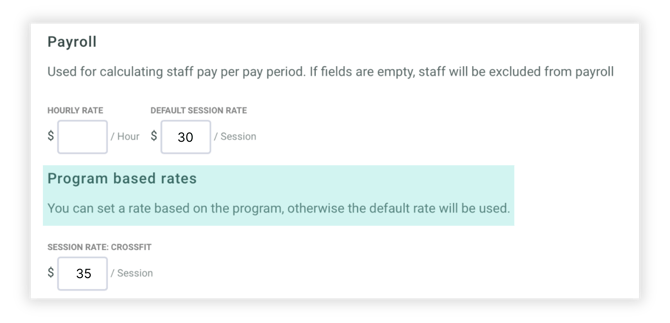
Before tracking hours or sessions, assign hourly and/or session rates to each staff member.
-
Go to Gym → Managers & Staff
- Click the green Edit ✎ button next to the staff member's name
• OR select Add Staff Member to create a new one
- Scroll to the Payroll section at the bottom of the Staff Profile
- Enter the hourly and/or session rates, then save
Tracking Hourly Pay (Manual Entry)
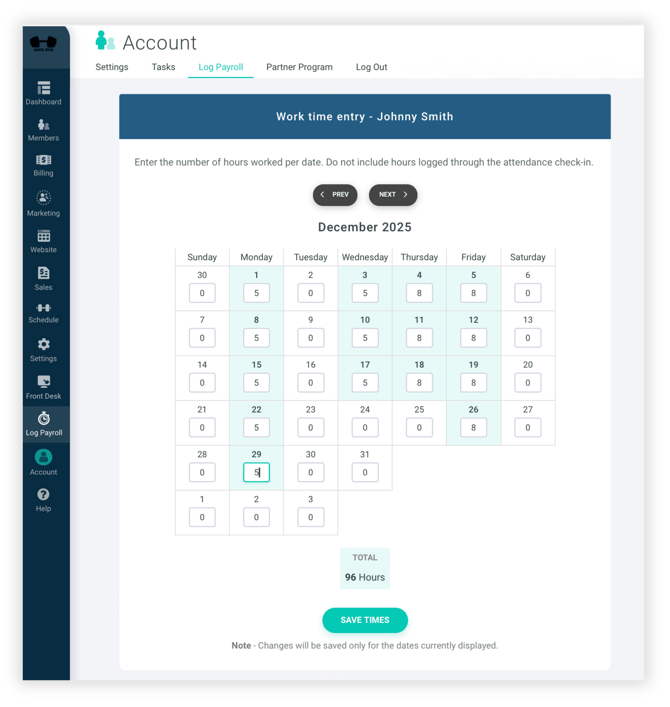
Hourly pay is tracked by manually logging hours worked. Staff can enter their own hours from their account using the Log Payroll tab at the bottom of the left-side menu. Logged hours are totaled automatically.
Note: Account Owners or Managers with payroll permissions can also edit staff hours directly from the gym staff list by opening the staff member’s time log.
Tracking Session Pay (Staff Check-Ins)
To track session-based pay, staff members must check in to classes or sessions using their staff account. Each staff check-in creates one paid session payroll entry, regardless of the session’s length. Staff members will have a "Manager" note next to their name.
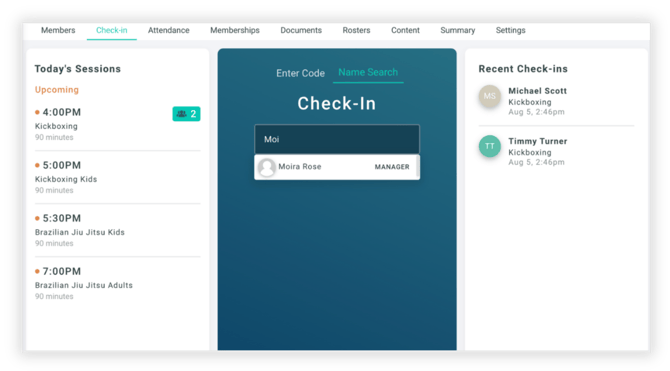
You can also use the Mass Check-in feature to log session-based payroll for staff members. Toggle on the "Includes Staff Members" setting and you'll see all of your instructors appear for check-in. 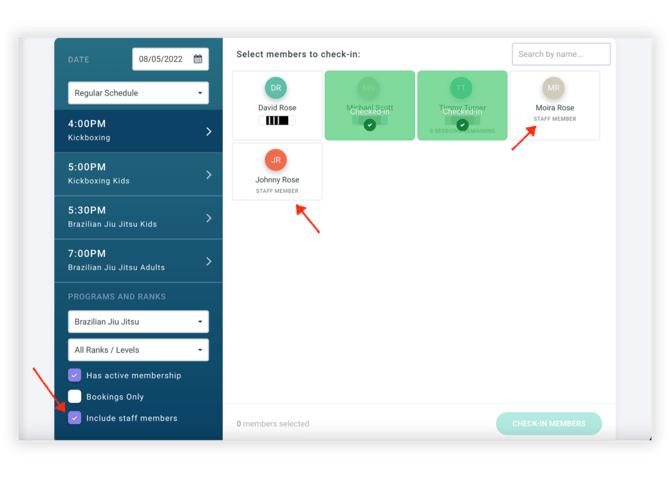
Payroll Reporting
The payroll reporting can be found by clicking on the "Gym" navigation tab and click "Payroll". This shows you an overview of hourly and/or session based time logged and totals up how much the staff has earned. You can filter by dates and download the report. Clicking the eye icon will show you a breakdown of the hours/sessions logged. To edit the hourly payroll, click on the pencil icon. Closing the pay period means no further changes can be made.
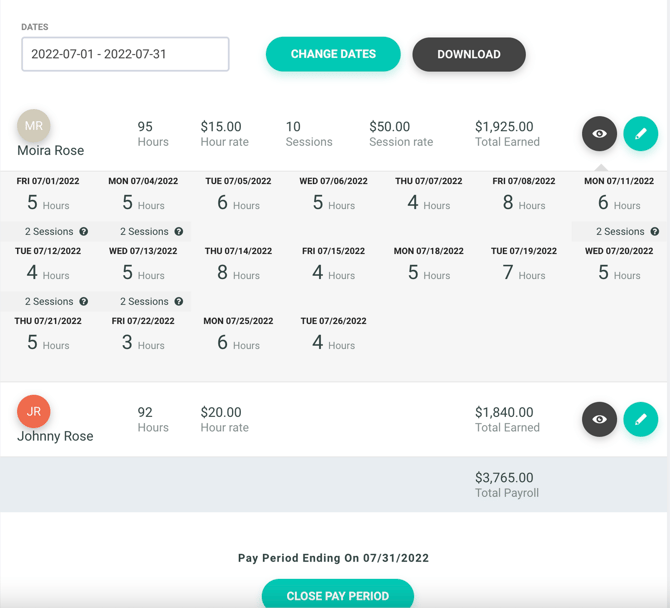
You can also download payroll reports to open and edit in spreadsheet softwares, like Excel.