---
title: Attendance Tracking
description: Learn how to track member attendance in Gymdesk, including check-ins by code or card, managing sessions, and viewing attendance records.
---
[Skip to content](https://docs.gymdesk.com/en/help/docs/attendance-tracking#main-content)
- [English](https://docs.gymdesk.com/en/help/docs/attendance-tracking)
- [日本語 - 日本](https://docs.gymdesk.com/ja-jp/help/attendance-tracking)
English
Show submenu for translations
[](https://gymdesk.com/)
- GYM TYPES
Show submenu for GYM TYPES
- [Fitness gyms software](https://gymdesk.com/software/gyms)
- [Martial arts schools software](https://gymdesk.com/software/martial-arts)
- [Gymnastics software](https://gymdesk.com/software/gymnastics)
- [Yoga studios software](https://gymdesk.com/software/yoga)
- [Dance studios software](https://gymdesk.com/software/dance)
- [Pilates studio software](https://gymdesk.com/software/pilates)
- [Club management software](https://gymdesk.com/software/membership-clubs)
- [Crossfit gym software](https://gymdesk.com/software/crossfit)
- FEATURES
Show submenu for FEATURES
- [Memberships](https://gymdesk.com/features/members)
- [Billing](https://gymdesk.com/features/billing)
- [Attendance](https://gymdesk.com/features/attendance)
- [Booking](https://gymdesk.com/features/booking)
- [Website](https://gymdesk.com/features/website)
- [Point-of-Sale](https://gymdesk.com/features/pos)
- [Marketing](https://gymdesk.com/features/marketing)
- [Reporting](https://gymdesk.com/features/reporting)
- [Facility Access](https://gymdesk.com/features/access)
- [Mobile App](https://gymdesk.com/features/member-app)
- [Integrations](https://gymdesk.com/features/integrations)
- RESOURCES
Show submenu for RESOURCES
- [Articles on growing a fitness business](https://gymdesk.com/blog/)
- [Gyms](https://gymdesk.com/blog/category/gyms/)
- [Martial Arts](https://gymdesk.com/blog/category/martial-arts/)
- [Yoga](https://gymdesk.com/blog/category/yoga/)
- [Gymnastics](https://gymdesk.com/blog/category/gymnastics/)
- [Dance](https://gymdesk.com/blog/category/dance/)
- [Pilates](https://gymdesk.com/blog/category/pilates/)
- [Sports clubs](https://gymdesk.com/blog/category/sport-clubs/)
- [The gym heroes podcast](https://gymdesk.com/blog/category/podcasts/)
- [CUSTOMERS](https://gymdesk.com/customers)
- [PRICING](https://gymdesk.com/pricing)
- [CONTACT](https://gymdesk.com/contact)
- [LOGIN](https://gymdesk.com/login)
Open main navigation
Close main navigation
- GYM TYPES
Show submenu for GYM TYPES
- [Fitness gyms software](https://gymdesk.com/software/gyms)
- [Martial arts schools software](https://gymdesk.com/software/martial-arts)
- [Gymnastics software](https://gymdesk.com/software/gymnastics)
- [Yoga studios software](https://gymdesk.com/software/yoga)
- [Dance studios software](https://gymdesk.com/software/dance)
- [Pilates studio software](https://gymdesk.com/software/pilates)
- [Club management software](https://gymdesk.com/software/membership-clubs)
- [Crossfit gym software](https://gymdesk.com/software/crossfit)
- FEATURES
Show submenu for FEATURES
- [Memberships](https://gymdesk.com/features/members)
- [Billing](https://gymdesk.com/features/billing)
- [Attendance](https://gymdesk.com/features/attendance)
- [Booking](https://gymdesk.com/features/booking)
- [Website](https://gymdesk.com/features/website)
- [Point-of-Sale](https://gymdesk.com/features/pos)
- [Marketing](https://gymdesk.com/features/marketing)
- [Reporting](https://gymdesk.com/features/reporting)
- [Facility Access](https://gymdesk.com/features/access)
- [Mobile App](https://gymdesk.com/features/member-app)
- [Integrations](https://gymdesk.com/features/integrations)
- RESOURCES
Show submenu for RESOURCES
- [Articles on growing a fitness business](https://gymdesk.com/blog/)
- [Gyms](https://gymdesk.com/blog/category/gyms/)
- [Martial Arts](https://gymdesk.com/blog/category/martial-arts/)
- [Yoga](https://gymdesk.com/blog/category/yoga/)
- [Gymnastics](https://gymdesk.com/blog/category/gymnastics/)
- [Dance](https://gymdesk.com/blog/category/dance/)
- [Pilates](https://gymdesk.com/blog/category/pilates/)
- [Sports clubs](https://gymdesk.com/blog/category/sport-clubs/)
- [The gym heroes podcast](https://gymdesk.com/blog/category/podcasts/)
- [CUSTOMERS](https://gymdesk.com/customers)
- [PRICING](https://gymdesk.com/pricing)
- [CONTACT](https://gymdesk.com/contact)
- [LOGIN](https://gymdesk.com/login)
- - [English](https://docs.gymdesk.com/en/help/docs/attendance-tracking)
- [日本語 - 日本](https://docs.gymdesk.com/ja-jp/help/attendance-tracking)
English
Show submenu for translations
- [Sign-Up](https://gymdesk.com/register)
[Sign-Up](https://gymdesk.com/register)
How can we help you?
- There are no suggestions because the search field is empty.
1. [Gymdesk Help](https://docs.gymdesk.com/en/help/docs?hsLang=en)
2. [Members](https://docs.gymdesk.com/en/help/docs/members?hsLang=en)
3. [Attendance Tracking & Check-Ins](https://docs.gymdesk.com/en/help/docs/members?hsLang=en#attendance-tracking-check-ins)
# Attendance Tracking
Gymdesk provides multiple ways to track attendance, whether you’re running scheduled classes, open-gym sessions, or a mixed environment. **Both members and visitors can check in using any supported method**, including numeric codes, name search, or membership cards. All check-ins flow into the same attendance logs and reports.
Attendance tracking must be enabled in **Member Settings → Attendance** before use.
### **Self-Service Check-Ins**
Self-service check-ins enable **Members** and **Visitors** to handle their own check-in process without needing staff assistance. This convenient option streamlines attendance tracking and gives guests more flexibility when entering your facility. Members and Visitors can check themselves in using either **[Front Desk Mode (Kiosk)](https://docs.gymdesk.com/en/help/docs/attendance-tracking#SS-1)** or by enabling **[Mobile App Check-Ins](https://docs.gymdesk.com/en/help/docs/attendance-tracking#SS-2)**.
**Useful for:** Busy classes, open-gym environments, or facilities that operate without a front desk.
### **1\. Front Desk Mode (Kiosk)**
You can set up a **tablet** at the front desk to provide a self-service check-in station. In Front Desk Mode, attendees can check in by:
- #### **Name Search Using Keyboard**
**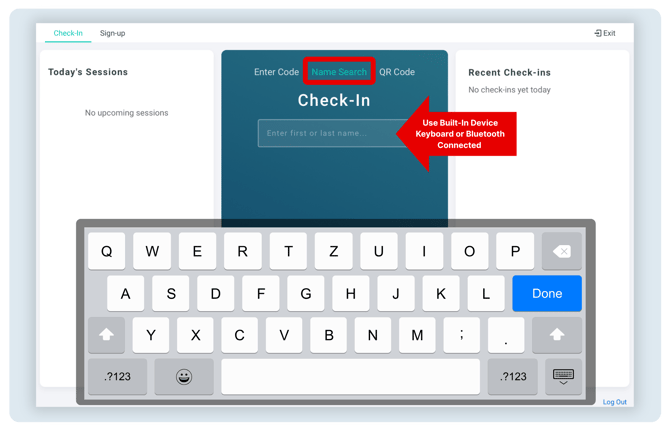**
Members or Visitors can type their name using the tablet’s on-screen keyboard or a connected Bluetooth keyboard, then select their name from the list of matching results that appears.
**Note:** Check-In with **name search can be disabled** **in** **Attendance Settings**.

- #### **Entering Their Numeric Code 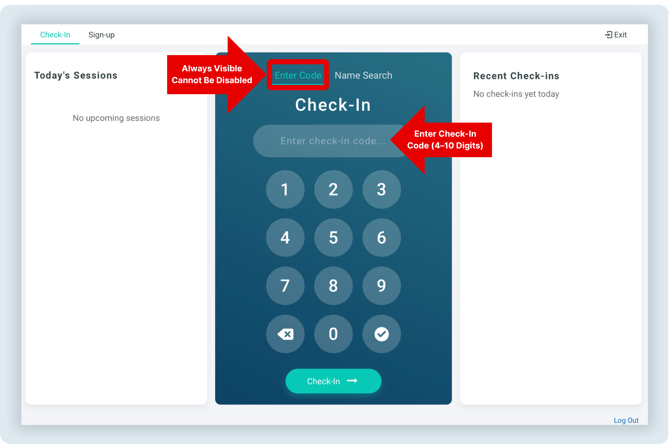**
**Attendees can check in by entering their unique numeric code using the tablet’s on-screen keypad. This code is displayed in the member or visitor profile, directly below their name. The numeric code check-in option remains available at all times and cannot be hidden. 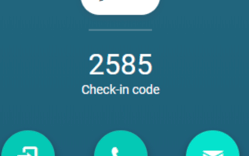**
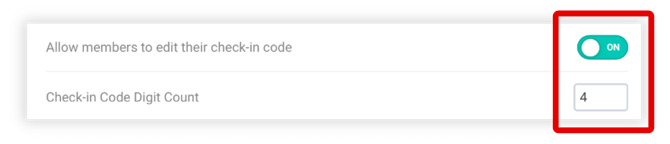
**Note:** You can **set the required code length in Attendance Settings**, and you can choose whether members and visitors are allowed to update their code themselves.
- #### **Scanning Membership Card *QR CODE 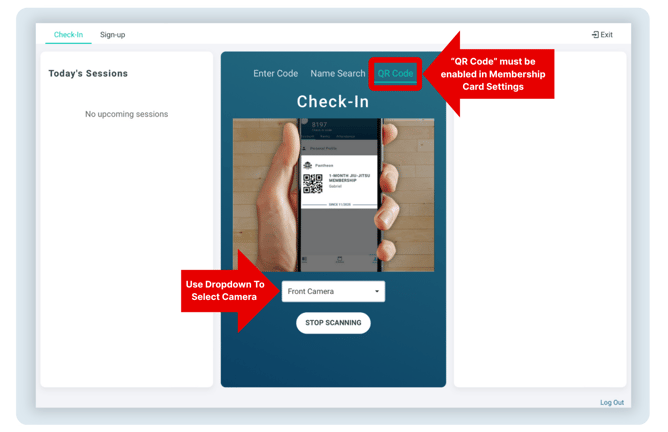***
***Scanning a Membership Card QR Code uses your device’s camera—built-in or connected—to read the code for quick check-in. For best results, use a front-facing camera. Members and visitors can scan either a physical membership card or, if enabled in your settings, a digital card displayed on their phone. [Learn more about membership cards](https://docs.gymdesk.com/help/membership-cards?hsLang=en).***
**Note:** The QR Code check-in option appears in Front Desk Mode **only when “QR Code” is set as the preferred code type** under **Attendance Settings → Membership Cards**.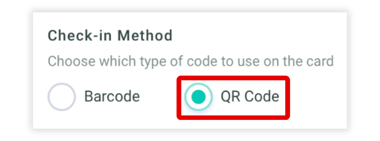
- #### **Scanning Membership Card *BARCODE*** (with connected scanner)
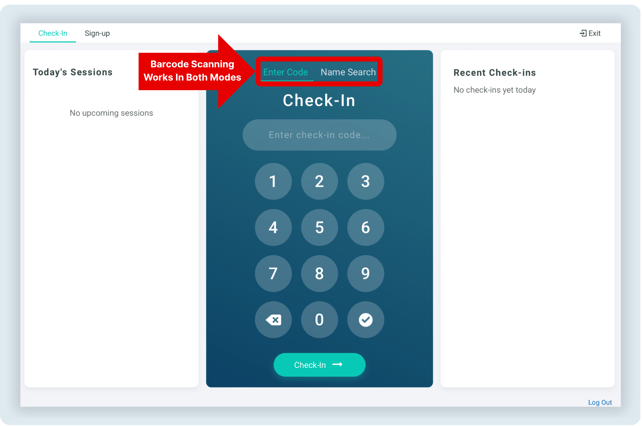
When you scan a membership card barcode with a connected scanner, the scanner automatically inputs the encoded information into the check-in field—just like typing on a keyboard. Because it works as a simple text entry, barcode scanning functions seamlessly across all check-in tabs, whether you’re using the **Enter Code** or **Name** **Search**.
#### **Gym Tip:** While Gymdesk doesn’t officially endorse specific hardware, many customers have had positive experiences with the ***Honeywell Barcode Scanner and iPad Wall-Mount Enclosure***. You can view it on Amazon [here](https://www.amazon.com/dp/B0F2VKP1NW?ref=fed_asin_title&th=1).
### **2. Mobile App Check-Ins**
**Members** and **Visitors** can check themselves in through the Gymdesk mobile app or through your [Branded Member App.](https://docs.gymdesk.com/en/help/docs/branded-member-app?hsLang=en)
The app displays all eligible sessions and allows for a one-tap check-in.
### **Attendance Tracking Without a Scheduled Session**
It's possible to track attendance at your fitness or weightlifting gym even if you don't have classes. To activate this feature, simply turn on "Enable attendance tracking with no schedule/classes" by going to settings-\> attendance -\> attendance tracking in your account.
[You can read more on the training schedule by clicking here](https://docs.gymdesk.com/help/schedule?hsLang=en).
### **Selecting a Session Before Check-In**
You can **click to select a session** on the check-in screen before entering or scanning a member’s code.

When a session is selected, all members who check in afterward are automatically recorded as attending that specific session. This streamlines the process when multiple classes are happening at once, ensuring each check-in is logged under the correct session.
**Useful for:** Quickly checking in members to the right class or program without manually adjusting attendance after the fact.
### **Adding Attendance Manually (Including Past Dates)**
Staff can add an attendance record to a member's profile at any time, including for a session that already happened. This is useful when a member forgot to check in or a check-in didn't go through.
1. Go to the member's profile.
2. Click the **Attendance** tab.
3. Click **+ Attendance**.
4. Select the exact session the member attended.
5. Select the membership the visit should count under.
6. Save the attendance record.
To bring in a large number of past attendance records at once, for example when moving from another provider, use the attendance CSV import. Learn more in [Data Imports Overview](https://docs.gymdesk.com/en/help/docs/data-imports?hsLang=en).
### **Attendance Reporting**
We provide several graphs and reports on your members' attendance. Click on "Members" -\> "Attendance" to get to the attendance overview.
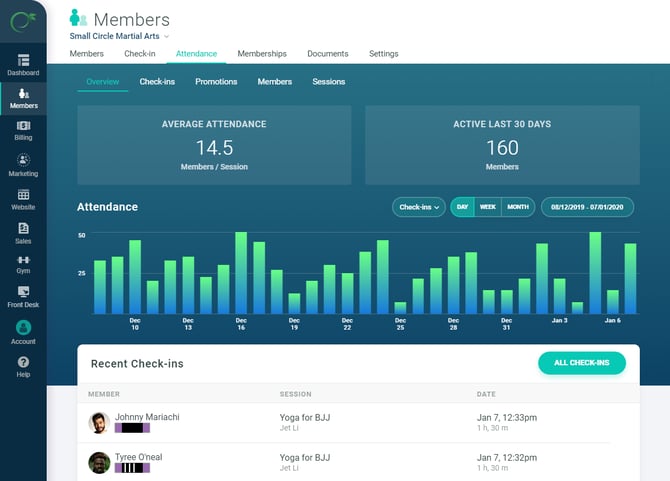
The promotions report is of special importance to keep track of members' progress towards their next rank. [You can learn more about it here](https://docs.gymdesk.com/help/member-ranks?hsLang=en).
- [Gymdesk Glossary](https://docs.gymdesk.com/en/help/docs/gymdesk-glossary?hsLang=en)
- [Getting started](https://docs.gymdesk.com/en/help/docs/getting-started?hsLang=en#main-content)
- [General Overview](https://docs.gymdesk.com/en/help/docs/getting-started?hsLang=en#general-overview)
- [Data & Payments Migration](https://docs.gymdesk.com/en/help/docs/getting-started?hsLang=en#data-payments-migration)
- [Account](https://docs.gymdesk.com/en/help/docs/account?hsLang=en)
- [Gym](https://docs.gymdesk.com/en/help/docs/gym?hsLang=en#main-content)
- [Schedule & Booking Management](https://docs.gymdesk.com/en/help/docs/gym?hsLang=en#schedule-booking-management)
- [Staff Management](https://docs.gymdesk.com/en/help/docs/gym?hsLang=en#staff-management)
- [Ranks & Promotions](https://docs.gymdesk.com/en/help/docs/gym?hsLang=en#ranks-promotions)
- [Members](https://docs.gymdesk.com/en/help/docs/members?hsLang=en#main-content)
- [Membership Structure & Setup](https://docs.gymdesk.com/en/help/docs/members?hsLang=en#membership-structure-setup)
- [Member Payments](https://docs.gymdesk.com/en/help/docs/members?hsLang=en#member-payments)
- [Member Portals & Apps](https://docs.gymdesk.com/en/help/docs/members?hsLang=en#member-portals-apps)
- [Attendance Tracking & Check-Ins](https://docs.gymdesk.com/en/help/docs/members?hsLang=en#attendance-tracking-check-ins)
- [Creating Membership Plans](https://docs.gymdesk.com/en/help/docs/members?hsLang=en#creating-membership-plans)
- [Billing](https://docs.gymdesk.com/en/help/docs/billing?hsLang=en#main-content)
- [Payment Processing](https://docs.gymdesk.com/en/help/docs/billing?hsLang=en#payment-processing)
- [Billing Settings & Discounts](https://docs.gymdesk.com/en/help/docs/billing?hsLang=en#billing-settings-discounts)
- [Accounting](https://docs.gymdesk.com/en/help/docs/billing?hsLang=en#accounting)
- [Marketing](https://docs.gymdesk.com/en/help/docs/marketing?hsLang=en#main-content)
- [Email & Text Messaging](https://docs.gymdesk.com/en/help/docs/marketing?hsLang=en#email-text-messaging)
- [Lead Management & Automations](https://docs.gymdesk.com/en/help/docs/marketing?hsLang=en#lead-management-automations)
- [Gym Websites](https://docs.gymdesk.com/en/help/docs/gym-websites?hsLang=en)
- [Sales](https://docs.gymdesk.com/en/help/docs/sales?hsLang=en)
- [Competition Management](https://docs.gymdesk.com/en/help/docs/competition-management?hsLang=en)
- [Integrations](https://docs.gymdesk.com/en/help/docs/integrations?hsLang=en)
- [Gymdesk Documentation & Policies](https://docs.gymdesk.com/en/help/docs/gymdesk-documentation-policies?hsLang=en)
- [Company](https://gymdesk.com/)
- [About us](https://gymdesk.com/content/about)
- [Contact us](https://gymdesk.com/contact)
- [Resources](https://gymdesk.com/blog/)
- [Features](https://gymdesk.com/)
- [Memberships](https://gymdesk.com/features/members)
- [Billing](https://gymdesk.com/features/billing)
- [Attendance](https://gymdesk.com/features/attendance)
- [Booking](https://gymdesk.com/features/booking)
- [Marketing](https://gymdesk.com/features/marketing)
- [Website](https://gymdesk.com/features/website)
- [Point-of-sale](https://gymdesk.com/features/pos)
- [Reporting](https://gymdesk.com/features/reporting)
- [Facility access](https://gymdesk.com/features/access)
- [Mobile app](https://gymdesk.com/features/member-app)
- [Integrations](https://gymdesk.com/features/integrations)
- [Gym types](https://gymdesk.com/)
- [Martial arts](https://gymdesk.com/software/martial-arts)
- [Membership clubs](https://gymdesk.com/software/membership-clubs)
- [Yoga studios](https://gymdesk.com/software/yoga)
- [Pilates studios](https://gymdesk.com/software/pilates)
- [Fitness gyms](https://gymdesk.com/software/gyms)
- [Gymnastics gyms](https://gymdesk.com/software/gymnastics)
- [Dance studios](https://gymdesk.com/software/dance)
- [Crossfit gyms](https://gymdesk.com/software/crossfit)
- [Resources](https://gymdesk.com/)
- [Our Customers](https://gymdesk.com/customers)
- [Documentation](https://docs.gymdesk.com/help/docs)
- [Pricing](https://gymdesk.com/pricing)
- [Membership contract template](https://gymdesk.com/lp/contract-template)
- [Black belt widget](https://gymdesk.com/lp/bbwidget)
- [Gym software guide](https://gymdesk.com/best-gym-management-software)
- [Trust center](https://gymdesk.com/page/trust)
- [Terms of service](https://gymdesk.com/page/terms)
- [Privacy policy](https://gymdesk.com/page/privacy)
- [Comparison](https://gymdesk.com/)
- [Mindbody](https://gymdesk.com/alternative/mindbody)
- [Jackrabbit](https://gymdesk.com/alternative/jackrabbit)
- [Zenplanner](https://gymdesk.com/alternative/zenplanner)
- [Kicksite](https://gymdesk.com/alternative/kicksite)
- [Spark membership](https://gymdesk.com/alternative/spark)
- [Pushpress](https://gymdesk.com/alternative/pushpress)
- [Gymmaster](https://gymdesk.com/alternative/gymmaster)
- [Glofox](https://gymdesk.com/alternative/glofox)
- [Hapana](https://gymdesk.com/alternative/hapana)
- [Mariana Tek](https://gymdesk.com/alternative/marianatek)
- [Momence](https://gymdesk.com/alternative/momence)
[](https://gymdesk.com/)
Built and run in Austin, TX
Copyright © 2025
```json
{
"@context" : "https://schema.org",
"@type" : "VideoObject",
"contentUrl" : "https://stream.mux.com/h2SP77nw1RXl7vAkQBLCYWJiQ00oiMu901rAERGQuSli4/capped-1080p.mp4",
"dateModified" : "2025-07-03T03:02:49.924Z",
"duration" : "PT11S",
"height" : 810,
"name" : "name-search-1",
"thumbnailUrl" : "https://145178229.fs1.hubspotusercontent-eu1.net/hubfs/145178229/name-search-1.mp4/medium.jpg",
"uploadDate" : "2025-07-03T03:02:45.089Z",
"width" : 1382
}
```