
Unlike members who can sign in through the member app, gym staff—including owners, administrators, and instructors—must access Gymdesk by logging in through the Gymdesk website using this link: https://app.gymdesk.com/login
REMINDER: The Member App is for Members (and Visitors) ONLY. Gym Staff must login through a web browser to access Gymdesk's gym management tools.
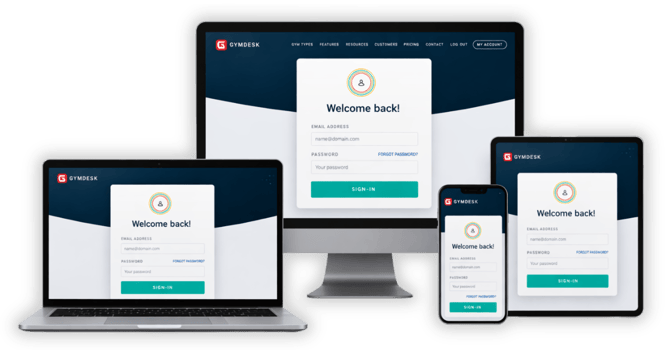
In addition to using a desktop computer, Gym Staff can also access Gymdesk from any tablet or mobile device using a web browser to handle everyday tasks such as checking members into class, reviewing schedules, updating member profiles, and processing payments.
Accessing Gymdesk from an iPad, Tablet or Mobile Device
Many gyms keep a tablet or iPad at the front desk for tasks like class check-ins, retail sales, and member management. To make access easier, you can add the Gymdesk login page to your device’s home screen so staff can open it with a single tap. The following sections explain how to add Gymdesk to your device’s home screen on iOS and Android devices.
Add Gymdesk to the Home Screen on iPad or iPhone
-
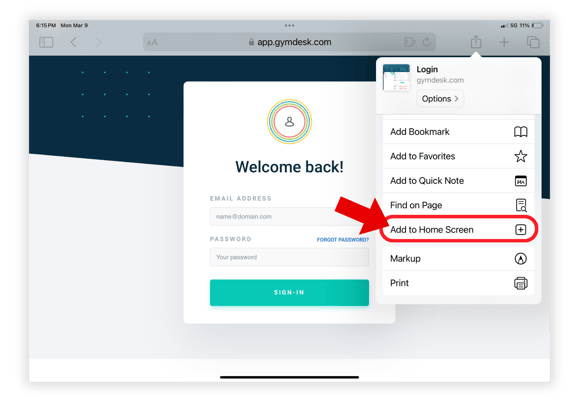
Open Safari and go to https://app.gymdesk.com/login
-
Tap the Share icon.
-
Select Add to Home Screen.
-
Tap Add.
Add Gymdesk to the Home Screen on Android Devices
-
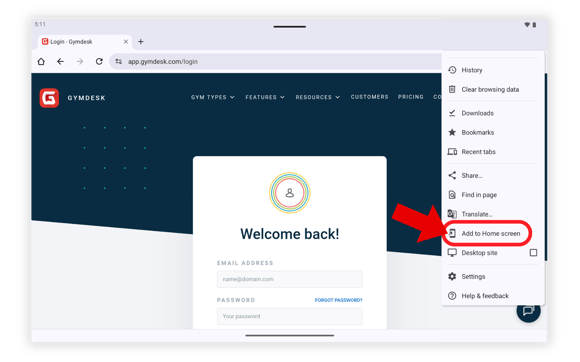
Open your browser and go to https://app.gymdesk.com/login
-
Tap the three-dot menu in the top-right corner of the browser.
-
Select Add to Home screen.
-
Tap Install.
The Gymdesk shortcut will now appear on your device’s home screen.