
Classes or sessions not showing in your member portal, app, or booking widget? Start by working through the checks below in order.
STEP 1: Check Membership Setup
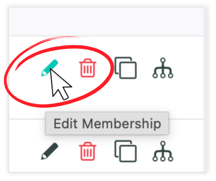
Go to the Membership Management screen. Locate the membership you are needing to troubleshoot. Click the pencil icon to open the Membership Setup (membership edit screen). In the Membership Setup, confirm that the membership allows members to book sessions. This setting is located in the Additional Settings box in the Membership Details section.
 |
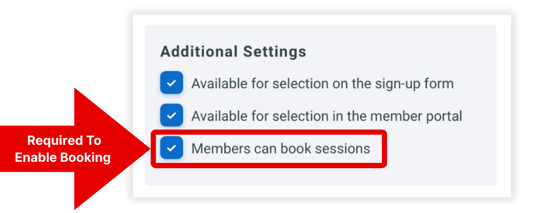 |
NOTE: The “Members can book sessions” setting applies to both Active Members and Visitors (Trial Members). When this is enabled, anyone assigned to that membership can book eligible classes or sessions.
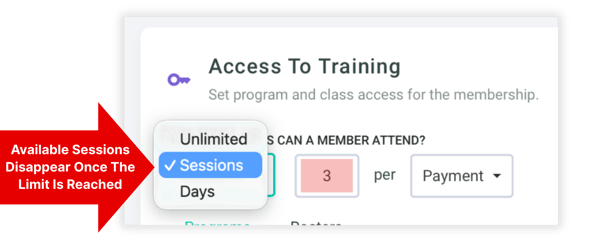
Next, scroll down to the "Access To Training" section of the membership setup. Memberships or Trials with session-based limits restrict how many times a Member (or Visitor) can book. Check whether their membership access is limited by a session count. When the session limit is reached, no available sessions will appear for that member.
If the membership is limited by session count, you can verify how many sessions remain by viewing the Memberships section on a member profile, or the Trials section on a visitor profile. If they’ve already used all available sessions in their current billing or trial period, new classes or sessions will no longer appear for them to book until their session count resets or you manually adjust their remaining sessions.
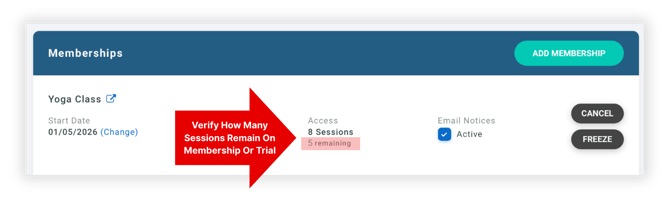
NOTE: The session count will reset automatically at the time of the next membership payment or it can be renewed right away to restore session counts.
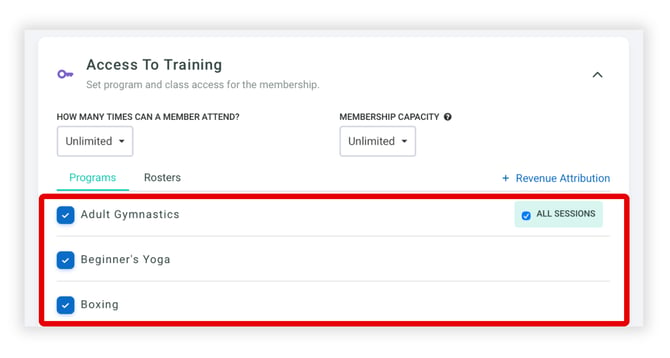
Lastly, confirm that the membership is assigned to the correct Programs. Programs control which classes or sessions a membership is allowed to see and book. If a session belongs to a program that isn’t selected here, it won’t appear for the member—even if booking is otherwise enabled. Make sure all relevant programs are checked so the membership aligns with the classes you expect members to access.
STEP 2: Check Session Setup
From your gym schedule, find the specific class or session your member (or visitor) can’t book. Click the pencil icon to open the Edit Session window, then go to the Booking tab. Make sure the “Available for Booking” checkbox is selected.
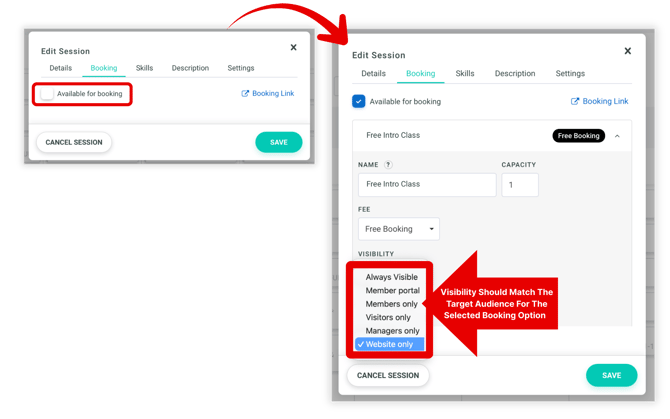
In the Edit Session window, under the Booking Tab, locate the Visibility dropdown. If the session has multiple booking options, confirm you’re reviewing the option assigned to the specific member or visitor you’re trying to book. Ensure that the set visibility is based on how you want this session to appear:
Always Visible |
The session is available anywhere it’s displayed. This is best used for general classes or ongoing sessions you want everyone with access to see without restrictions. | |
Member Portal |
Visible in the member portal and mobile app. This session would be visible to both Active Members and Visitors (Trial Members) who have portal access. | |
Members Only |
Visible only to Active Members who are logged into their account (through the Gymdesk member portal or Gymdesk/Branded Member App). | |
Visitors Only |
Only Visitors (Trial Members) who are logged into their accounts can see and book these sessions (through the Gymdesk member portal or Gymdesk/Branded Member App). | |
Managers Only |
Only Managers or Staff (with permissions to access Gym Schedule) can see and book individuals into them. | |
Website Only |
Only appears on your public website booking widget. This is best used for intro classes or marketing-focused sessions targeted at brand-new leads. | |
STEP 3: Check Booking Settings
Booking visibility issues are often caused by specific configuration settings. Based on support trends, the top three settings that most frequently impact visibility are:
-
Card-on-File Requirements – If this setting is enabled, members must have a saved payment method before they can see or book sessions. If members report that classes aren’t showing, confirm whether this requirement is turned on.
-
Booking Cancellations – Restrictions around cancellations can create confusion if members expect to cancel or rebook sessions last-minute. Ensure the “Allow members to cancel bookings” setting is enabled and that the cancellation window (e.g., 24 hours) is clearly communicated.
-
Overdue Payments – If a member has an outstanding balance, their ability to book may be blocked. Double-check if “Disable member bookings for overdue payments” is enabled, and guide members to resolve any billing issues.
These settings can all be found under Booking Settings in your Gymdesk dashboard. Reviewing them is a quick first step when investigating missing or restricted session availability.
STEP 4: Check Time Zones
Time zone misconfigurations are a common reason members can’t see or book sessions at expected times. If sessions appear at the wrong time or don’t show up at all, here are key steps to troubleshoot:
-
Verify Time Zone Settings in Gymdesk – Make sure the account’s time zone is set correctly under Gym Settings. An incorrect time zone here can shift all session times, affecting visibility.
-
Check Member Devices or Calendars – Sometimes the issue stems from a mismatch between the member’s device or calendar time zone and the one set in Gymdesk. Support often recommends checking Google Calendar or mobile device settings if times look off.
-
Session Check-In Settings – In some cases, support has found that the “Time to check-in before class” setting can also affect what sessions are visible. If it’s too restrictive, sessions may not appear on the member’s check-in page.