---
title: Membership Cards
description: Membership Cards
---
[Skip to content](https://docs.gymdesk.com/en/help/docs/membership-cards#main-content)
- [English](https://docs.gymdesk.com/en/help/docs/membership-cards)
- [日本語 - 日本](https://docs.gymdesk.com/ja-jp/help/membership-cards)
English
Show submenu for translations
[](https://gymdesk.com/)
- GYM TYPES
Show submenu for GYM TYPES
- [Fitness gyms software](https://gymdesk.com/software/gyms)
- [Martial arts schools software](https://gymdesk.com/software/martial-arts)
- [Gymnastics software](https://gymdesk.com/software/gymnastics)
- [Yoga studios software](https://gymdesk.com/software/yoga)
- [Dance studios software](https://gymdesk.com/software/dance)
- [Pilates studio software](https://gymdesk.com/software/pilates)
- [Club management software](https://gymdesk.com/software/membership-clubs)
- [Crossfit gym software](https://gymdesk.com/software/crossfit)
- FEATURES
Show submenu for FEATURES
- [Memberships](https://gymdesk.com/features/members)
- [Billing](https://gymdesk.com/features/billing)
- [Attendance](https://gymdesk.com/features/attendance)
- [Booking](https://gymdesk.com/features/booking)
- [Website](https://gymdesk.com/features/website)
- [Point-of-Sale](https://gymdesk.com/features/pos)
- [Marketing](https://gymdesk.com/features/marketing)
- [Reporting](https://gymdesk.com/features/reporting)
- [Facility Access](https://gymdesk.com/features/access)
- [Mobile App](https://gymdesk.com/features/member-app)
- [Integrations](https://gymdesk.com/features/integrations)
- RESOURCES
Show submenu for RESOURCES
- [Articles on growing a fitness business](https://gymdesk.com/blog/)
- [Gyms](https://gymdesk.com/blog/category/gyms/)
- [Martial Arts](https://gymdesk.com/blog/category/martial-arts/)
- [Yoga](https://gymdesk.com/blog/category/yoga/)
- [Gymnastics](https://gymdesk.com/blog/category/gymnastics/)
- [Dance](https://gymdesk.com/blog/category/dance/)
- [Pilates](https://gymdesk.com/blog/category/pilates/)
- [Sports clubs](https://gymdesk.com/blog/category/sport-clubs/)
- [The gym heroes podcast](https://gymdesk.com/blog/category/podcasts/)
- [CUSTOMERS](https://gymdesk.com/customers)
- [PRICING](https://gymdesk.com/pricing)
- [CONTACT](https://gymdesk.com/contact)
- [LOGIN](https://gymdesk.com/login)
Open main navigation
Close main navigation
- GYM TYPES
Show submenu for GYM TYPES
- [Fitness gyms software](https://gymdesk.com/software/gyms)
- [Martial arts schools software](https://gymdesk.com/software/martial-arts)
- [Gymnastics software](https://gymdesk.com/software/gymnastics)
- [Yoga studios software](https://gymdesk.com/software/yoga)
- [Dance studios software](https://gymdesk.com/software/dance)
- [Pilates studio software](https://gymdesk.com/software/pilates)
- [Club management software](https://gymdesk.com/software/membership-clubs)
- [Crossfit gym software](https://gymdesk.com/software/crossfit)
- FEATURES
Show submenu for FEATURES
- [Memberships](https://gymdesk.com/features/members)
- [Billing](https://gymdesk.com/features/billing)
- [Attendance](https://gymdesk.com/features/attendance)
- [Booking](https://gymdesk.com/features/booking)
- [Website](https://gymdesk.com/features/website)
- [Point-of-Sale](https://gymdesk.com/features/pos)
- [Marketing](https://gymdesk.com/features/marketing)
- [Reporting](https://gymdesk.com/features/reporting)
- [Facility Access](https://gymdesk.com/features/access)
- [Mobile App](https://gymdesk.com/features/member-app)
- [Integrations](https://gymdesk.com/features/integrations)
- RESOURCES
Show submenu for RESOURCES
- [Articles on growing a fitness business](https://gymdesk.com/blog/)
- [Gyms](https://gymdesk.com/blog/category/gyms/)
- [Martial Arts](https://gymdesk.com/blog/category/martial-arts/)
- [Yoga](https://gymdesk.com/blog/category/yoga/)
- [Gymnastics](https://gymdesk.com/blog/category/gymnastics/)
- [Dance](https://gymdesk.com/blog/category/dance/)
- [Pilates](https://gymdesk.com/blog/category/pilates/)
- [Sports clubs](https://gymdesk.com/blog/category/sport-clubs/)
- [The gym heroes podcast](https://gymdesk.com/blog/category/podcasts/)
- [CUSTOMERS](https://gymdesk.com/customers)
- [PRICING](https://gymdesk.com/pricing)
- [CONTACT](https://gymdesk.com/contact)
- [LOGIN](https://gymdesk.com/login)
- - [English](https://docs.gymdesk.com/en/help/docs/membership-cards)
- [日本語 - 日本](https://docs.gymdesk.com/ja-jp/help/membership-cards)
English
Show submenu for translations
- [Sign-Up](https://gymdesk.com/register)
[Sign-Up](https://gymdesk.com/register)
How can we help you?
- There are no suggestions because the search field is empty.
1. [Gymdesk Help](https://docs.gymdesk.com/en/help/docs?hsLang=en)
2. [Members](https://docs.gymdesk.com/en/help/docs/members?hsLang=en)
3. [Attendance Tracking & Check-Ins](https://docs.gymdesk.com/en/help/docs/members?hsLang=en#attendance-tracking-check-ins)
# Membership Cards
You can provide members with physical or virtual membership cards that can be used for checking-in to sessions.
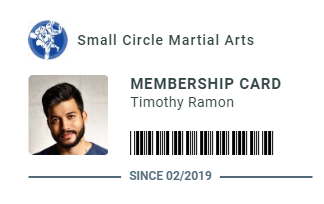
You can print individual membership cards for members on either premium paper or PVC plastic, which includes (optional) photo identification and a barcode that can be used for attendance tracking.
Alternatively, members can save / print their membership card through their online account, or open it on their mobile device for check-in purposes.
### Generating Membership Cards
You can generate a membership card for a member by visiting their profile and clicking on the "Card" button in the left sidebar.
The membership card includes a barcode that can be used with any barcode scanner to check-in members without entering their PIN code.
### Printing Membership Cards
You have two options when printing memberships cards, aside from regular paper -
- Using glossy paper with any compatible printer
- Printing on PVC plastic cards
Using glossy paper is pretty straightforward - send the card to the printer and later cut out the card.
Printing on PVC cards gives a more premium feel and has more durability, however it typically requires specialized, expensive printers to produce. Fortunately, there is a more affordable method to print PVC cards, using Inkjet printers that have a media disc printing tray.
### PVC Card Printing
We prepared the following guide for PVC printing using common, relatively inexpensive printers for your convenience. Note that we cannot provide technical support for operating printers, and that the process is more involved than regular printing.
Certain Inkjet printers are equipped with a media tray for printing on compact discs. While those are no longer common in use, the media tray can be reused for printing on PVC cards using the appropriate tray.
What you'll need:
- An Inkjet printer with a media tray for compact disc cover printing
- A PVC card tray for your printer
- PVC cards
[Brainstorm ID](https://brainstormidsupply.com/inkjet-id-cards/kits-cards-trays/printer-trays) is a company that manufactures such trays for several lines of Inkjet printers. You can also find similar PVC printer trays on Amazon. For the purpose of this guide, we will be using a Canon PIXMA TS8220 printer, but the process will be similar with any printer that can support a PVC card tray.
Once you have all of the components mentioned above, you can start the printing process:
- Follow your printers' instructions for preparing the card tray. If you purchased a tray from Brainstorm ID (mentioned above), they also provide video tutorials on their website for each of their trays. With the printer we are using in this guide, you should load two PVC cards into the tray (even if you are only printing one at a time). Do not insert the tray yet.
- Go to the membership card page from the member profile, and click on the print icon.
- Change the media type to "Printable Disc" in the print settings. In most browsers, this will require you to open the system printer dialog instead of the simplified browser one. Here's how to get there on Chrome:
- Once you are there, select your Inkjet printer and click on "Preferences". Set the media type to "Printable Disc", the paper source and printer paper size to "Multi-purpose tray" (those values might be slightly different depending on your printer). It should look like this:
- Click on "Ok" to confirm, and you are ready to print. Click on "Print" in the dialog to start the printing process.
- With the Canon PIXMA TS8220 printer, you will need to wait for the printer to ask you to insert the tray. Follow the instructions on the printer and insert the tray when requested.
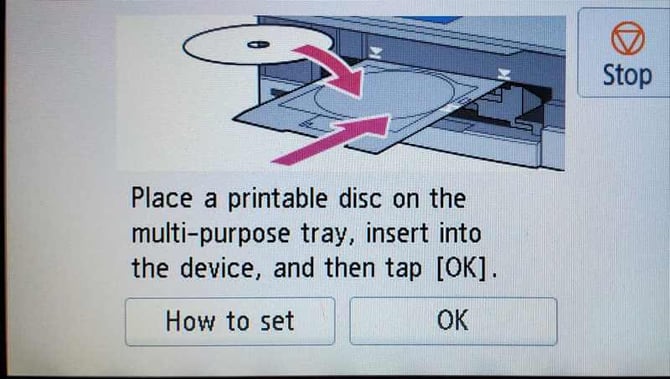
- After inserting the tray and pressing "OK", the printing process will start. Sometimes the printer will stop and ask to insert the tray again after seemingly doing nothing - just follow the instructions and re-insert the tray.
- And that's it! You should have a professional looking PVC membership card. It might seem somewhat involved, but once you do it once it's relatively straightforward. You might need to adjust the margins on the printing areas a couple of times before it comes out dead center on the card.
### Exporting the card and managing printing yourself
You can also save the membership card as an image, and manage printing using your preferred printing software which might have more options better suited to the printer you have on hand. To save the card, click on the image icon above the membership card layout.
If you are using their trays, Brainstorm ID provides [a PDF generator](https://brainstormidsupply.com/id-card-printing-layout-tool.html) that can accept multiple cards at once. You can save the cards as images and load it into the generator if you'd rather print out multiple cards at once.
### Membership cards in the member portal
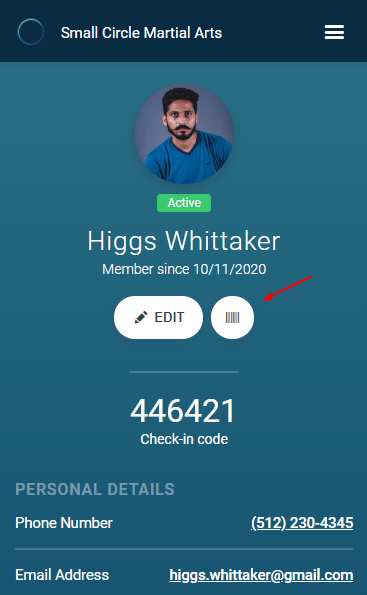
Members can access their membership card by clicking on the barcode icon in their main profile screen:
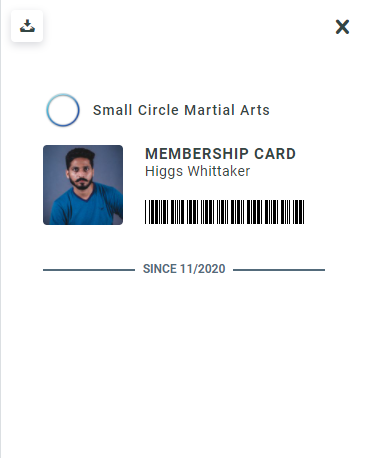
This opens up their membership card, which can be used directly on a mobile device with a barcode scanner / QR code camera, or printed using the download button in the top-left.
- [Gymdesk Glossary](https://docs.gymdesk.com/en/help/docs/gymdesk-glossary?hsLang=en)
- [Getting started](https://docs.gymdesk.com/en/help/docs/getting-started?hsLang=en#main-content)
- [General Overview](https://docs.gymdesk.com/en/help/docs/getting-started?hsLang=en#general-overview)
- [Data & Payments Migration](https://docs.gymdesk.com/en/help/docs/getting-started?hsLang=en#data-payments-migration)
- [Account](https://docs.gymdesk.com/en/help/docs/account?hsLang=en)
- [Gym](https://docs.gymdesk.com/en/help/docs/gym?hsLang=en#main-content)
- [Schedule & Booking Management](https://docs.gymdesk.com/en/help/docs/gym?hsLang=en#schedule-booking-management)
- [Staff Management](https://docs.gymdesk.com/en/help/docs/gym?hsLang=en#staff-management)
- [Ranks & Promotions](https://docs.gymdesk.com/en/help/docs/gym?hsLang=en#ranks-promotions)
- [Members](https://docs.gymdesk.com/en/help/docs/members?hsLang=en#main-content)
- [Membership Structure & Setup](https://docs.gymdesk.com/en/help/docs/members?hsLang=en#membership-structure-setup)
- [Member Payments](https://docs.gymdesk.com/en/help/docs/members?hsLang=en#member-payments)
- [Member Portals & Apps](https://docs.gymdesk.com/en/help/docs/members?hsLang=en#member-portals-apps)
- [Attendance Tracking & Check-Ins](https://docs.gymdesk.com/en/help/docs/members?hsLang=en#attendance-tracking-check-ins)
- [Creating Membership Plans](https://docs.gymdesk.com/en/help/docs/members?hsLang=en#creating-membership-plans)
- [Billing](https://docs.gymdesk.com/en/help/docs/billing?hsLang=en#main-content)
- [Payment Processing](https://docs.gymdesk.com/en/help/docs/billing?hsLang=en#payment-processing)
- [Billing Settings & Discounts](https://docs.gymdesk.com/en/help/docs/billing?hsLang=en#billing-settings-discounts)
- [Accounting](https://docs.gymdesk.com/en/help/docs/billing?hsLang=en#accounting)
- [Marketing](https://docs.gymdesk.com/en/help/docs/marketing?hsLang=en#main-content)
- [Email & Text Messaging](https://docs.gymdesk.com/en/help/docs/marketing?hsLang=en#email-text-messaging)
- [Lead Management & Automations](https://docs.gymdesk.com/en/help/docs/marketing?hsLang=en#lead-management-automations)
- [Gym Websites](https://docs.gymdesk.com/en/help/docs/gym-websites?hsLang=en)
- [Sales](https://docs.gymdesk.com/en/help/docs/sales?hsLang=en)
- [Competition Management](https://docs.gymdesk.com/en/help/docs/competition-management?hsLang=en)
- [Integrations](https://docs.gymdesk.com/en/help/docs/integrations?hsLang=en)
- [Gymdesk Documentation & Policies](https://docs.gymdesk.com/en/help/docs/gymdesk-documentation-policies?hsLang=en)
- [Company](https://gymdesk.com/)
- [About us](https://gymdesk.com/content/about)
- [Contact us](https://gymdesk.com/contact)
- [Resources](https://gymdesk.com/blog/)
- [Features](https://gymdesk.com/)
- [Memberships](https://gymdesk.com/features/members)
- [Billing](https://gymdesk.com/features/billing)
- [Attendance](https://gymdesk.com/features/attendance)
- [Booking](https://gymdesk.com/features/booking)
- [Marketing](https://gymdesk.com/features/marketing)
- [Website](https://gymdesk.com/features/website)
- [Point-of-sale](https://gymdesk.com/features/pos)
- [Reporting](https://gymdesk.com/features/reporting)
- [Facility access](https://gymdesk.com/features/access)
- [Mobile app](https://gymdesk.com/features/member-app)
- [Integrations](https://gymdesk.com/features/integrations)
- [Gym types](https://gymdesk.com/)
- [Martial arts](https://gymdesk.com/software/martial-arts)
- [Membership clubs](https://gymdesk.com/software/membership-clubs)
- [Yoga studios](https://gymdesk.com/software/yoga)
- [Pilates studios](https://gymdesk.com/software/pilates)
- [Fitness gyms](https://gymdesk.com/software/gyms)
- [Gymnastics gyms](https://gymdesk.com/software/gymnastics)
- [Dance studios](https://gymdesk.com/software/dance)
- [Crossfit gyms](https://gymdesk.com/software/crossfit)
- [Resources](https://gymdesk.com/)
- [Our Customers](https://gymdesk.com/customers)
- [Documentation](https://docs.gymdesk.com/help/docs)
- [Pricing](https://gymdesk.com/pricing)
- [Membership contract template](https://gymdesk.com/lp/contract-template)
- [Black belt widget](https://gymdesk.com/lp/bbwidget)
- [Gym software guide](https://gymdesk.com/best-gym-management-software)
- [Trust center](https://gymdesk.com/page/trust)
- [Terms of service](https://gymdesk.com/page/terms)
- [Privacy policy](https://gymdesk.com/page/privacy)
- [Comparison](https://gymdesk.com/)
- [Mindbody](https://gymdesk.com/alternative/mindbody)
- [Jackrabbit](https://gymdesk.com/alternative/jackrabbit)
- [Zenplanner](https://gymdesk.com/alternative/zenplanner)
- [Kicksite](https://gymdesk.com/alternative/kicksite)
- [Spark membership](https://gymdesk.com/alternative/spark)
- [Pushpress](https://gymdesk.com/alternative/pushpress)
- [Gymmaster](https://gymdesk.com/alternative/gymmaster)
- [Glofox](https://gymdesk.com/alternative/glofox)
- [Hapana](https://gymdesk.com/alternative/hapana)
- [Mariana Tek](https://gymdesk.com/alternative/marianatek)
- [Momence](https://gymdesk.com/alternative/momence)
[](https://gymdesk.com/)
Built and run in Austin, TX
Copyright © 2025
```json
{
"@context" : "https://schema.org",
"@type" : "VideoObject",
"contentUrl" : "https://stream.mux.com/zAsgQixSBWPC8WIzXDIMxtXgrRvJVA4GkYSjubaedzc/capped-1080p.mp4",
"dateModified" : "2025-02-15T18:21:37.589Z",
"duration" : "PT6S",
"height" : 844,
"name" : "print-settings",
"thumbnailUrl" : "https://145178229.fs1.hubspotusercontent-eu1.net/hubfs/145178229/print-settings.webm/medium.jpg",
"uploadDate" : "2025-02-15T18:21:37.584Z",
"width" : 478
}
```
```json
{
"@context" : "https://schema.org",
"@type" : "VideoObject",
"contentUrl" : "https://stream.mux.com/VK9ds02s02pHH2eHTEykZ1GL8nki01oLEdPS8z1ekS3Ne4/capped-1080p.mp4",
"dateModified" : "2025-02-15T18:23:27.847Z",
"duration" : "PT20S",
"height" : 726,
"name" : "print-settings-2",
"thumbnailUrl" : "https://145178229.fs1.hubspotusercontent-eu1.net/hubfs/145178229/print-settings-2.webm/medium.jpg",
"uploadDate" : "2025-02-15T18:23:27.842Z",
"width" : 836
}
```