---
title: Marketing Automations
description: Marketing Automations
---
[Skip to content](https://docs.gymdesk.com/en/help/docs/marketing-automations#main-content)
- [English](https://docs.gymdesk.com/en/help/docs/marketing-automations)
- [日本語 - 日本](https://docs.gymdesk.com/ja-jp/help/marketing-automations)
English
Show submenu for translations
[](https://gymdesk.com/)
- GYM TYPES
Show submenu for GYM TYPES
- [Fitness gyms software](https://gymdesk.com/software/gyms)
- [Martial arts schools software](https://gymdesk.com/software/martial-arts)
- [Gymnastics software](https://gymdesk.com/software/gymnastics)
- [Yoga studios software](https://gymdesk.com/software/yoga)
- [Dance studios software](https://gymdesk.com/software/dance)
- [Pilates studio software](https://gymdesk.com/software/pilates)
- [Club management software](https://gymdesk.com/software/membership-clubs)
- [Crossfit gym software](https://gymdesk.com/software/crossfit)
- FEATURES
Show submenu for FEATURES
- [Memberships](https://gymdesk.com/features/members)
- [Billing](https://gymdesk.com/features/billing)
- [Attendance](https://gymdesk.com/features/attendance)
- [Booking](https://gymdesk.com/features/booking)
- [Website](https://gymdesk.com/features/website)
- [Point-of-Sale](https://gymdesk.com/features/pos)
- [Marketing](https://gymdesk.com/features/marketing)
- [Reporting](https://gymdesk.com/features/reporting)
- [Facility Access](https://gymdesk.com/features/access)
- [Mobile App](https://gymdesk.com/features/member-app)
- [Integrations](https://gymdesk.com/features/integrations)
- RESOURCES
Show submenu for RESOURCES
- [Articles on growing a fitness business](https://gymdesk.com/blog/)
- [Gyms](https://gymdesk.com/blog/category/gyms/)
- [Martial Arts](https://gymdesk.com/blog/category/martial-arts/)
- [Yoga](https://gymdesk.com/blog/category/yoga/)
- [Gymnastics](https://gymdesk.com/blog/category/gymnastics/)
- [Dance](https://gymdesk.com/blog/category/dance/)
- [Pilates](https://gymdesk.com/blog/category/pilates/)
- [Sports clubs](https://gymdesk.com/blog/category/sport-clubs/)
- [The gym heroes podcast](https://gymdesk.com/blog/category/podcasts/)
- [CUSTOMERS](https://gymdesk.com/customers)
- [PRICING](https://gymdesk.com/pricing)
- [CONTACT](https://gymdesk.com/contact)
- [LOGIN](https://gymdesk.com/login)
Open main navigation
Close main navigation
- GYM TYPES
Show submenu for GYM TYPES
- [Fitness gyms software](https://gymdesk.com/software/gyms)
- [Martial arts schools software](https://gymdesk.com/software/martial-arts)
- [Gymnastics software](https://gymdesk.com/software/gymnastics)
- [Yoga studios software](https://gymdesk.com/software/yoga)
- [Dance studios software](https://gymdesk.com/software/dance)
- [Pilates studio software](https://gymdesk.com/software/pilates)
- [Club management software](https://gymdesk.com/software/membership-clubs)
- [Crossfit gym software](https://gymdesk.com/software/crossfit)
- FEATURES
Show submenu for FEATURES
- [Memberships](https://gymdesk.com/features/members)
- [Billing](https://gymdesk.com/features/billing)
- [Attendance](https://gymdesk.com/features/attendance)
- [Booking](https://gymdesk.com/features/booking)
- [Website](https://gymdesk.com/features/website)
- [Point-of-Sale](https://gymdesk.com/features/pos)
- [Marketing](https://gymdesk.com/features/marketing)
- [Reporting](https://gymdesk.com/features/reporting)
- [Facility Access](https://gymdesk.com/features/access)
- [Mobile App](https://gymdesk.com/features/member-app)
- [Integrations](https://gymdesk.com/features/integrations)
- RESOURCES
Show submenu for RESOURCES
- [Articles on growing a fitness business](https://gymdesk.com/blog/)
- [Gyms](https://gymdesk.com/blog/category/gyms/)
- [Martial Arts](https://gymdesk.com/blog/category/martial-arts/)
- [Yoga](https://gymdesk.com/blog/category/yoga/)
- [Gymnastics](https://gymdesk.com/blog/category/gymnastics/)
- [Dance](https://gymdesk.com/blog/category/dance/)
- [Pilates](https://gymdesk.com/blog/category/pilates/)
- [Sports clubs](https://gymdesk.com/blog/category/sport-clubs/)
- [The gym heroes podcast](https://gymdesk.com/blog/category/podcasts/)
- [CUSTOMERS](https://gymdesk.com/customers)
- [PRICING](https://gymdesk.com/pricing)
- [CONTACT](https://gymdesk.com/contact)
- [LOGIN](https://gymdesk.com/login)
- - [English](https://docs.gymdesk.com/en/help/docs/marketing-automations)
- [日本語 - 日本](https://docs.gymdesk.com/ja-jp/help/marketing-automations)
English
Show submenu for translations
- [Sign-Up](https://gymdesk.com/register)
[Sign-Up](https://gymdesk.com/register)
How can we help you?
- There are no suggestions because the search field is empty.
1. [Gymdesk Help](https://docs.gymdesk.com/en/help/docs?hsLang=en)
2. [Marketing](https://docs.gymdesk.com/en/help/docs/marketing?hsLang=en)
3. [Lead Management & Automations](https://docs.gymdesk.com/en/help/docs/marketing?hsLang=en#lead-management-automations)
# Marketing Automations
Gymdesk provides powerful automation features to automate your marketing and member retention efforts. In this article we'll go over how to set up automations and the different tools available to you through this feature.
To access and manage automations, go to **Marketing** from the main menu, then **Automations** from the sub navigation.
### **How Automations Work**
An automation is a sequence of actions that process automatically for your members, visitors and leads. An automation has a **trigger** - a specific condition that starts the automation. The following conditions can be a trigger for automations on Gymdesk:
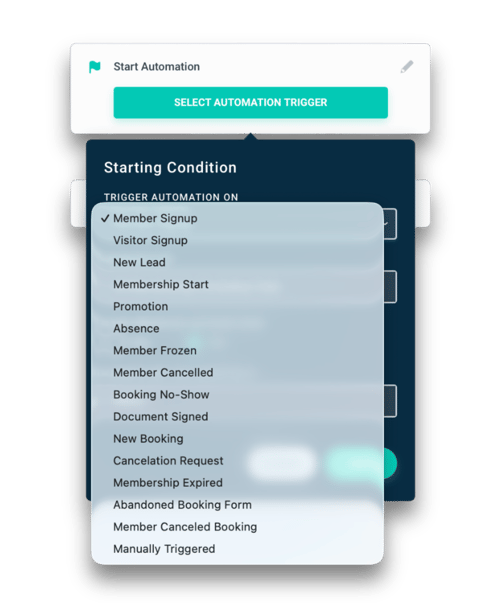
- **Member Sign-up** - When a member signs up through the sign-up form.
- **Visitor Sign-up** - When a lead signs up through the sign-up form.
- **New Lead** - Can be targeted specifically to different lead acquisition sources, such as web forms and bookings.
- **Membership Start** - Triggered when a new membership or trial starts for a member / visitor.
- **Abandoned Booking Form** -This allows you to trigger a sequence the moment a contact completes the first step of your reverse bookings flow — perfect for automated follow-ups or lead recovery campaigns.
- **Promotion** - Triggered when the member is awarded a new rank / level. You can also create different automations for different ranks / levels.
- **Absence** - Triggered when the member is absent (has not logged attendance) a certain number of days.
- **Member Frozen** - Triggered when a member account is frozen
- **Member Canceled** - Triggered when a member account is canceled
- **Booking No-Show** - Triggered when a member / lead does not check-in to their booking within a certain period of time after class starts (the time period can be configured in the booking settings).
- **Member Cancelled Booking** - Triggered when a member cancels a booking. You can use this to send follow-up messages, encourage them to rebook, or take other actions after the cancellation.
- **Manual Trigger** - Does not trigger automatically, but this automations can be added manually to members / leads by the staff.
.png?width=364&height=573&name=automation-trigger%20(1).png)
### **Setting The Automation Conditions**
Stop Previous Automations
When setting up the automation trigger, you can also set it to stop previous automations. You can have it stop all previous automations, or select specific ones.
Always Exit Automation If
Finally, you can set a global exit condition that stops the automation for a contact when the condition is fulfilled.
### **Automations Steps**
After specifying the trigger condition for the automation, you build it by adding steps from the left sidebar. Steps are grouped into 3 buckets: **Messages, Flow** and **Actions**.
### **Messages**
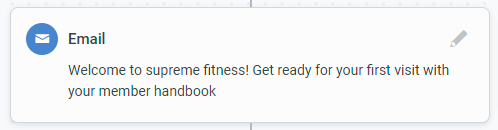
**Email** - Send an Email message. Would only be sent if the contact has a valid Email address
**SMS** - Send an SMS/Text message. Would only be sent if the contact has a valid phone number
*You can also set quiet hours where texts are not sent under Settings -\> Marketing -\> Text Messaging*
**Push Notification** - Send a push notification to the Gymdesk Members app. Would only be sent if the contact installed the app
### **Flow**
**Delay** - Add a delay between steps in the automation. You can specify the delay by any number of minutes, hours, days, weeks, months or sessions. The **Session** delay will count sessions attended since the previous step in the automation, not the total amount of sessions attended by the member all-time.

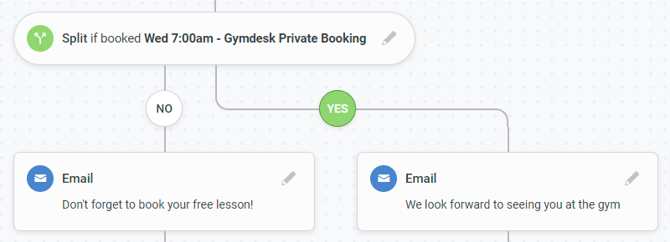
**Split** - Add a split in the automation based on a condition you specify. Available conditions include:
- **Booked a session** - Checks if the contact booked any session, a session from a specific schedule, or a specific session
- **Has a membership** - Checks if the contact has a membership (any or a specific membership)
- **Canceled a membership** - Checks if the contact canceled a membership (any or a specific membership)
- **Replied to this automation** - Checks if the contact replied to a previous message in this automation
- **Has tag** - Checks if the contact has a specific tag on their profile
**Start automation** - You can chain multiple automations by adding a step that start a new automation at that point in time.
### **Actions**
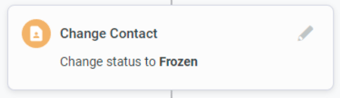
**Change contact** - Perform an action on the contact. Options available are:
- **Add / Remove tag** - Add or remove a specific tag from this contact
- **Change status** - Change the status of the contact. This includes freezing / canceling / activating members, and moving leads between custom statuses.
- **Change type** - Change the type of the contact between member / visitor / lead.
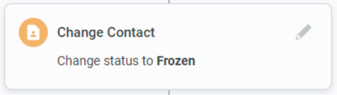
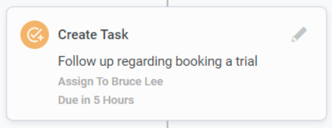
**Create Task** - Create a task associated with this contact. You can optionally assign it to a staff member, and set a due date in the future.
**Send Webhook** - Send a request to a web URL with details about the contact. This allows you to connect the automation to external APIs and custom systems that support webhooks.
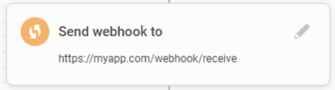
The webhook contains the following parameters with details about the contact:
- **member\_id** - Unique identifier for this contact
- **name** - The name of the contact
- **email** - The contact's Email address (if any)
- **phone** - The contact's phone number (if any)
**Add Document** - Sends the recipient an email notification informing them that a new document is available and requires their signature.

### **Managing Automations for Members / Leads**
You can view which automations are currently running for a member by visiting their **Messaging** tab. Currently active and previous automations would be shown, and can be paused / removed if needed.
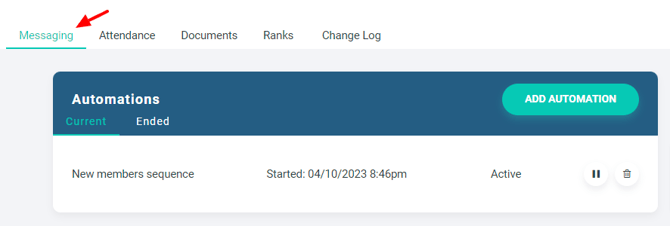
Once an automation has ended or have been unsubscribed from by the member, it would show up in the "Ended" tab in the Automations section.
**Using Pre-Built Templates**
On the automations page, click “use template” to view Gymdesk’s library of automation templates.
For each template, you’ll see a brief description of its purpose and the number of steps within the automation.
Clicking on “use template”, will open the template in the automation creator, allowing you to rename and make changes to the content before saving it in your account.
You can always edit it again after adding it to your account.
- [Gymdesk Glossary](https://docs.gymdesk.com/en/help/docs/gymdesk-glossary?hsLang=en)
- [Getting started](https://docs.gymdesk.com/en/help/docs/getting-started?hsLang=en#main-content)
- [General Overview](https://docs.gymdesk.com/en/help/docs/getting-started?hsLang=en#general-overview)
- [Data & Payments Migration](https://docs.gymdesk.com/en/help/docs/getting-started?hsLang=en#data-payments-migration)
- [Account](https://docs.gymdesk.com/en/help/docs/account?hsLang=en)
- [Gym](https://docs.gymdesk.com/en/help/docs/gym?hsLang=en#main-content)
- [Schedule & Booking Management](https://docs.gymdesk.com/en/help/docs/gym?hsLang=en#schedule-booking-management)
- [Staff Management](https://docs.gymdesk.com/en/help/docs/gym?hsLang=en#staff-management)
- [Ranks & Promotions](https://docs.gymdesk.com/en/help/docs/gym?hsLang=en#ranks-promotions)
- [Members](https://docs.gymdesk.com/en/help/docs/members?hsLang=en#main-content)
- [Membership Structure & Setup](https://docs.gymdesk.com/en/help/docs/members?hsLang=en#membership-structure-setup)
- [Member Payments](https://docs.gymdesk.com/en/help/docs/members?hsLang=en#member-payments)
- [Member Portals & Apps](https://docs.gymdesk.com/en/help/docs/members?hsLang=en#member-portals-apps)
- [Attendance Tracking & Check-Ins](https://docs.gymdesk.com/en/help/docs/members?hsLang=en#attendance-tracking-check-ins)
- [Creating Membership Plans](https://docs.gymdesk.com/en/help/docs/members?hsLang=en#creating-membership-plans)
- [Billing](https://docs.gymdesk.com/en/help/docs/billing?hsLang=en#main-content)
- [Payment Processing](https://docs.gymdesk.com/en/help/docs/billing?hsLang=en#payment-processing)
- [Billing Settings & Discounts](https://docs.gymdesk.com/en/help/docs/billing?hsLang=en#billing-settings-discounts)
- [Accounting](https://docs.gymdesk.com/en/help/docs/billing?hsLang=en#accounting)
- [Marketing](https://docs.gymdesk.com/en/help/docs/marketing?hsLang=en#main-content)
- [Email & Text Messaging](https://docs.gymdesk.com/en/help/docs/marketing?hsLang=en#email-text-messaging)
- [Lead Management & Automations](https://docs.gymdesk.com/en/help/docs/marketing?hsLang=en#lead-management-automations)
- [Gym Websites](https://docs.gymdesk.com/en/help/docs/gym-websites?hsLang=en)
- [Sales](https://docs.gymdesk.com/en/help/docs/sales?hsLang=en)
- [Competition Management](https://docs.gymdesk.com/en/help/docs/competition-management?hsLang=en)
- [Integrations](https://docs.gymdesk.com/en/help/docs/integrations?hsLang=en)
- [Gymdesk Documentation & Policies](https://docs.gymdesk.com/en/help/docs/gymdesk-documentation-policies?hsLang=en)
- [Company](https://gymdesk.com/)
- [About us](https://gymdesk.com/content/about)
- [Contact us](https://gymdesk.com/contact)
- [Resources](https://gymdesk.com/blog/)
- [Features](https://gymdesk.com/)
- [Memberships](https://gymdesk.com/features/members)
- [Billing](https://gymdesk.com/features/billing)
- [Attendance](https://gymdesk.com/features/attendance)
- [Booking](https://gymdesk.com/features/booking)
- [Marketing](https://gymdesk.com/features/marketing)
- [Website](https://gymdesk.com/features/website)
- [Point-of-sale](https://gymdesk.com/features/pos)
- [Reporting](https://gymdesk.com/features/reporting)
- [Facility access](https://gymdesk.com/features/access)
- [Mobile app](https://gymdesk.com/features/member-app)
- [Integrations](https://gymdesk.com/features/integrations)
- [Gym types](https://gymdesk.com/)
- [Martial arts](https://gymdesk.com/software/martial-arts)
- [Membership clubs](https://gymdesk.com/software/membership-clubs)
- [Yoga studios](https://gymdesk.com/software/yoga)
- [Pilates studios](https://gymdesk.com/software/pilates)
- [Fitness gyms](https://gymdesk.com/software/gyms)
- [Gymnastics gyms](https://gymdesk.com/software/gymnastics)
- [Dance studios](https://gymdesk.com/software/dance)
- [Crossfit gyms](https://gymdesk.com/software/crossfit)
- [Resources](https://gymdesk.com/)
- [Our Customers](https://gymdesk.com/customers)
- [Documentation](https://docs.gymdesk.com/help/docs)
- [Pricing](https://gymdesk.com/pricing)
- [Membership contract template](https://gymdesk.com/lp/contract-template)
- [Black belt widget](https://gymdesk.com/lp/bbwidget)
- [Gym software guide](https://gymdesk.com/best-gym-management-software)
- [Trust center](https://gymdesk.com/page/trust)
- [Terms of service](https://gymdesk.com/page/terms)
- [Privacy policy](https://gymdesk.com/page/privacy)
- [Comparison](https://gymdesk.com/)
- [Mindbody](https://gymdesk.com/alternative/mindbody)
- [Jackrabbit](https://gymdesk.com/alternative/jackrabbit)
- [Zenplanner](https://gymdesk.com/alternative/zenplanner)
- [Kicksite](https://gymdesk.com/alternative/kicksite)
- [Spark membership](https://gymdesk.com/alternative/spark)
- [Pushpress](https://gymdesk.com/alternative/pushpress)
- [Gymmaster](https://gymdesk.com/alternative/gymmaster)
- [Glofox](https://gymdesk.com/alternative/glofox)
- [Hapana](https://gymdesk.com/alternative/hapana)
- [Mariana Tek](https://gymdesk.com/alternative/marianatek)
- [Momence](https://gymdesk.com/alternative/momence)
[](https://gymdesk.com/)
Built and run in Austin, TX
Copyright © 2025