
Back to ← Privacy Policy & Business Contact Details
Your branded member app should reflect your gym’s identity. In this section, you’ll configure your app name, logo, splash screen, and theme colors to ensure your app looks polished and consistent across the Apple App Store and Google Play Store.
Naming Your App & Setting Store Details
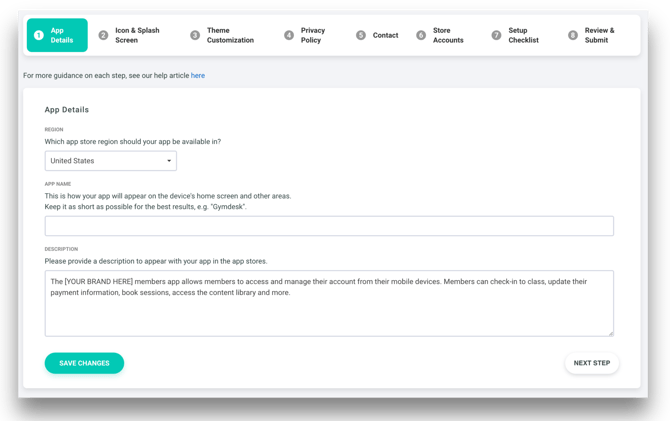
Use this page to set how your app appears in the App Store and Google Play, including store region, app name, and description. Choose an app name that matches your business branding and keep it short. Write a clear description of what members can do in the app, such as booking classes, managing memberships, and updating payment details.
Creating Your App Icon & Splash Screen
After giving your app a name and providing the app store description, it's time to create the app icon and splash screen. Navigate to this step in Settings by heading to Branded Member App → Icon & Splash Screen.
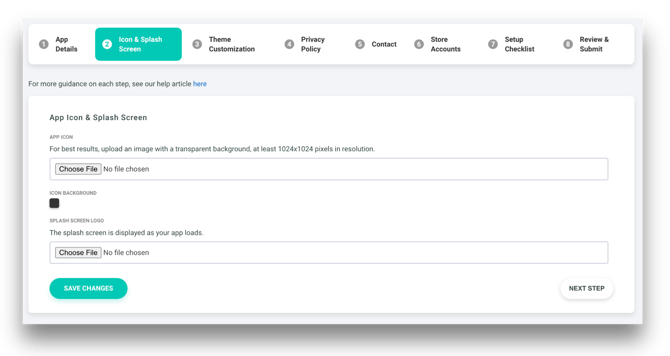
Your app icon is the small square image members see on their home screens and in app store listings. Upload a high‑resolution PNG file (at least 1024 × 1024) with a transparent background. Once uploaded, use the color picker to choose a solid background color for your icon.
The splash screen image is displayed briefly when the app loads. This can include your logo or a simple branded graphic that aligns with your app’s overall design. After uploading your images, click Save Changes before proceeding.
Customizing Your App Theme
Next, navigate to this step in Settings by heading to Branded Member App → Theme Customization. This is where you’ll define the overall look and feel of your Branded Member App.
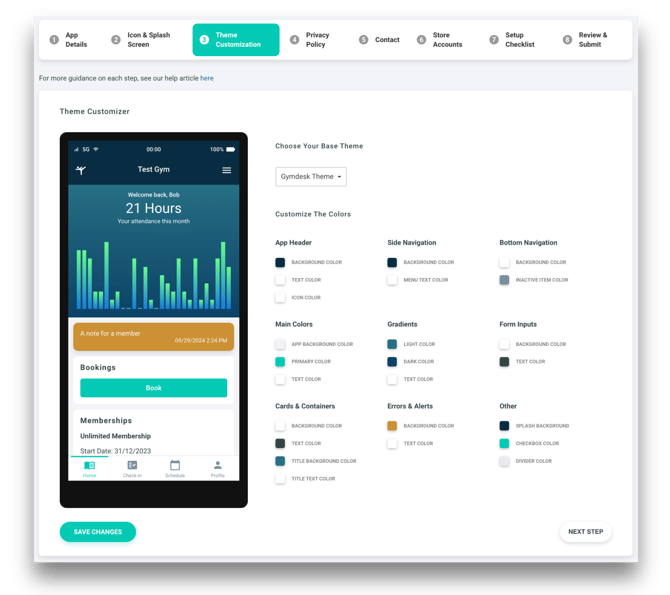
Start by choosing a preset theme like Gymdesk, Light, or Dark as a polished base you can use or customize. For more control, adjust individual interface colors—such as headers, buttons, and navigation—to match your brand. Use the interactive app preview to see your changes across screens before saving.
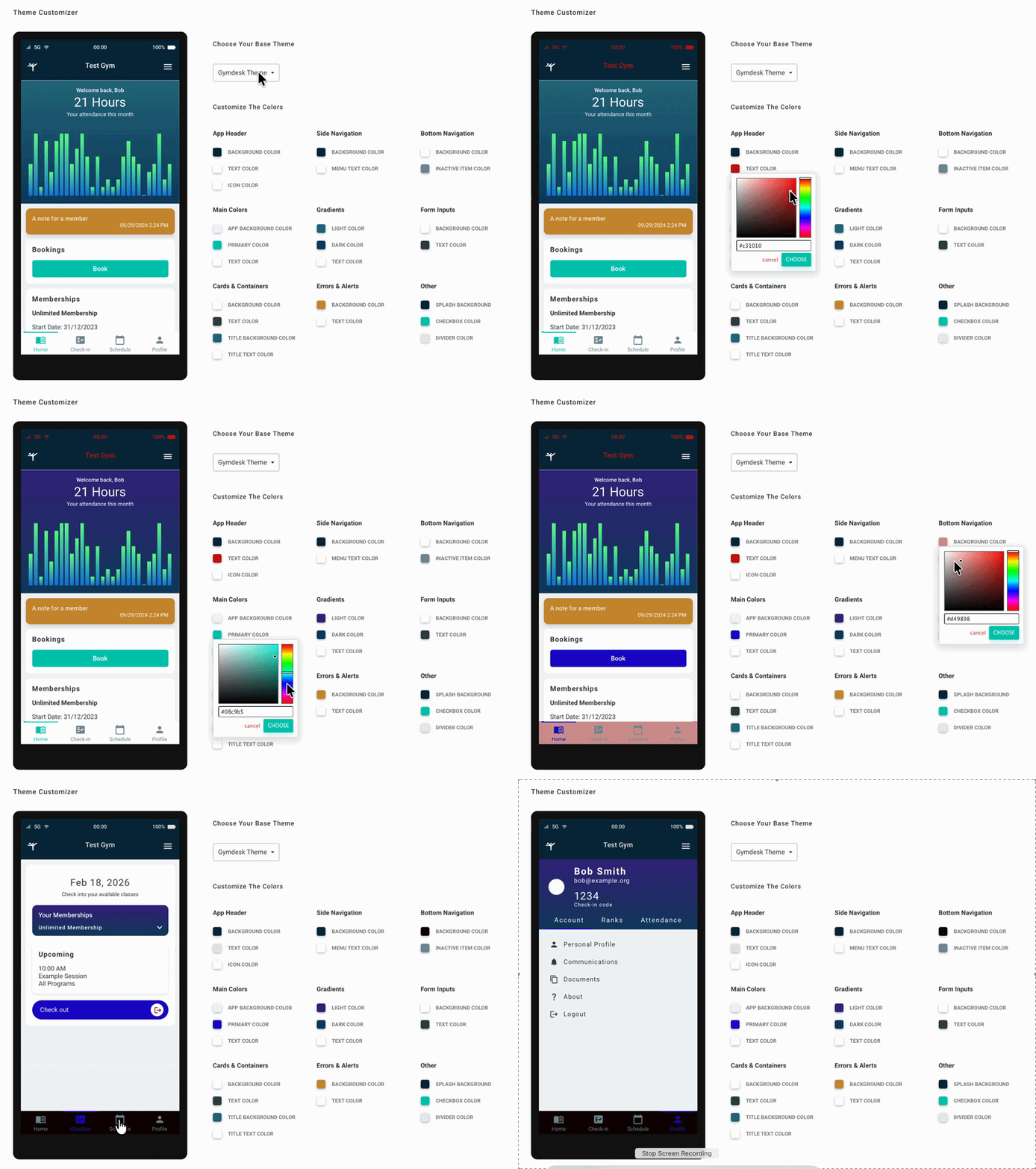
Once you’re satisfied with the appearance, click Save Changes to continue.